Your router's default settings are designed for basic functionality and universal compatibility—not optimal performance. Proper configuration can noticeably improve Wi-Fi speeds when settings are the bottleneck, dramatically enhance security, and eliminate common issues like dead zones and connection drops.
This comprehensive guide covers every important router setting, from essential security changes to advanced performance optimizations. Whether you're a networking novice or technical enthusiast, these best practices will help you maximize your WiFi experience. For broader optimization strategies, also see our guide on factors affecting internet speed.
Why Default Router Settings Aren't Optimal
Manufacturers configure routers with conservative default settings that prioritize compatibility over performance. Here's what's typically suboptimal out of the box:
❌ Default Problems
- Generic admin passwords (easily guessable)
- Auto channel often picks congested channels
- Mixed security modes include weak protocols
- No QoS means equal priority for all traffic
- Band steering often poorly implemented
- Firmware rarely auto-updated
✅ Optimized Benefits
- Strong, unique admin credentials
- Manually selected optimal channels
- Modern WPA3/WPA2-AES security only
- QoS prioritizes critical applications
- Proper band separation or steering
- Regular firmware updates scheduled
Many routers run on factory settings that suit no home in particular. Placement, band and channel choices often make a bigger difference than a faster plan — measure before and after each change.— Why configuration matters
Step 1: Accessing Your Router's Configuration Panel
Finding Your Router's IP Address
🪟 Windows Method
- Press
Win + R, typecmd, press Enter - Type
ipconfigand press Enter - Find "Default Gateway" under your active adapter—this is your router's IP
🍎 macOS Method
- Open System Preferences → Network
- Select your active connection (WiFi or Ethernet)
- Click "Advanced" → TCP/IP tab
- "Router" field shows your gateway IP
📱 Common Router IP Addresses
- 192.168.1.1 – Most common (Linksys, Asus, TP-Link)
- 192.168.0.1 – D-Link, Netgear, some TP-Link
- 10.0.0.1 – Xfinity/Comcast, some ISP routers
- 192.168.1.254 – Some ISP-provided routers
- Check router label – Always printed on device
Logging Into the Admin Panel
- Open any web browser and enter your router's IP address
- Enter default username and password (found on router label)
- Common defaults: admin/admin, admin/password, admin/(blank)
- Immediately change the admin password after first login
Step 2: WiFi Channel Optimization
Choosing the right WiFi channel is crucial for avoiding interference and maximizing speed. In congested areas like apartments, proper channel selection can double your effective speed.
| Band | Best Channels | Channels to Avoid | Best Use Case | Interference Sources |
|---|---|---|---|---|
| 2.4 GHz | 1, 6, 11 | 2, 3, 4, 5, 7, 8, 9, 10 | IoT devices, long range, walls | Microwaves, baby monitors, Bluetooth |
| 5 GHz (UNII-1) | 36, 40, 44, 48 | Varies by region | Most devices, indoor use | Radar systems, cordless phones |
| 5 GHz (UNII-3) | 149, 153, 157, 161, 165 | 52-144 (DFS/radar zones) | High performance, less congestion | Weather radar in some areas |
| 6 GHz (WiFi 6E) | 1-93 (various) | N/A (new spectrum) | Latest devices, fastest speeds | Very few (new, uncrowded spectrum) |
How to Find the Best Channel
🔍 Using WiFi Analyzer Tools
- Android: WiFi Analyzer (free), NetSpot
- iOS: Network Analyzer, WiFi Sweetspots
- Windows: WiFi Analyzer from Microsoft Store, inSSIDer
- macOS: WiFi Explorer, Wireless Diagnostics (built-in)
- Look for: Channels with fewest overlapping networks and strongest signal
⚙️ Configuration Steps
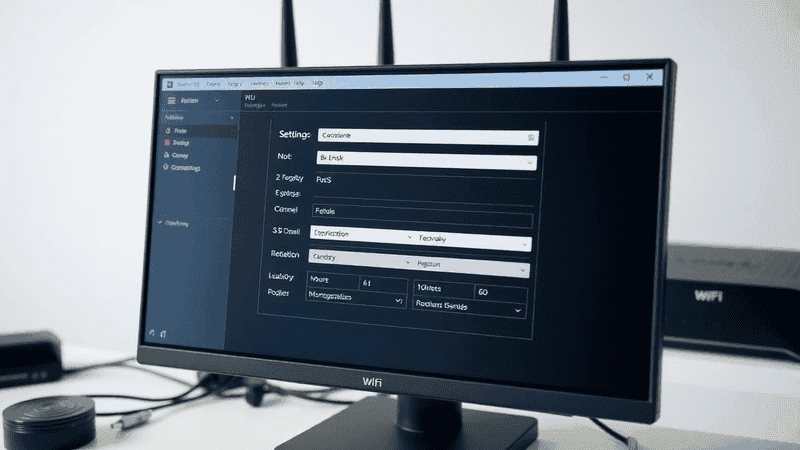
- Navigate to Wireless Settings → 2.4 GHz Settings
- Change Channel from "Auto" to your analyzed optimal channel (1, 6, or 11)
- Navigate to 5 GHz Settings
- Select channel in 36-48 range (UNII-1) or 149-165 (UNII-3)
- Save settings and restart router
Understanding Channel Width
| Channel Width | Speed Potential | Range | Congestion Sensitivity | Best Use Case |
|---|---|---|---|---|
| 20 MHz | Lowest (~150 Mbps) | Best | Most resistant | 2.4 GHz, crowded areas |
| 40 MHz | Medium (~300 Mbps) | Good | Moderate | 5 GHz moderate use |
| 80 MHz | High (~800 Mbps) | Reduced | Sensitive | 5 GHz standard, WiFi 5/6 |
| 160 MHz | Maximum (~1.7 Gbps) | Shortest | Very sensitive | 5 GHz/6 GHz, WiFi 6/6E |
Step 3: Security Protocol Configuration
Proper security protects your network from unauthorized access, prevents bandwidth theft, and ensures optimal performance. Weak protocols also impact speed due to older encryption overhead.
| Security Protocol | Year Introduced | Security Rating | Speed Impact | Recommendation |
|---|---|---|---|---|
| WEP | 1997 | ❌ Broken | Low | 🚫 Never use - crackable in minutes |
| WPA (TKIP) | 2003 | ❌ Poor | Medium | 🚫 Avoid - significant vulnerabilities |
| WPA2 (AES) | 2004 | ✅ Good | Low | ⚠️ Minimum acceptable standard |
| WPA3 | 2018 | ✅ Excellent | Very Low | ✅ Use when all devices support |
| WPA2/WPA3 Mixed | 2018+ | ✅ Very Good | Low | ✅ Best compatibility + security |
Password Best Practices
✅ Strong Password Characteristics
- 12+ characters minimum (16+ recommended)
- Mix of uppercase, lowercase, numbers, symbols
- Avoid dictionary words and personal info
- Use a passphrase: 'Coffee!Sunrise92Beach'
- Unique—not used elsewhere
❌ Common Weak Passwords
- Default passwords (admin, password123)
- Personal info (birthday, address, pet names)
- Simple patterns (12345678, qwerty)
- Short passwords (under 10 characters)
- Single dictionary words
Essential Security Settings
- Disable WPS – WiFi Protected Setup has known vulnerabilities; disable completely
- Disable remote management – Unless specifically needed, keep admin panel LAN-only
- Enable firewall – Use router's built-in firewall protection (usually default on)
- Hide SSID – Optional, provides minor security through obscurity
- MAC filtering – Optional extra layer; allows only known devices (can be spoofed)
- Enable logging – Monitor for unauthorized access attempts
A strong, unique Wi-Fi and admin password, WPA3 (or WPA2-AES) encryption and disabled WPS close the most commonly exploited weaknesses of home routers.— Security baseline
Step 4: Quality of Service (QoS) Configuration
QoS prioritizes important traffic over less critical data, ensuring smooth video calls and gaming even when others are downloading large files. This is essential for multi-user households. For video call optimization, see our detailed video call speed guide.
| Device/Application | Recommended Band | QoS Priority | Bandwidth % | Latency Sensitivity |
|---|---|---|---|---|
| Gaming consoles/PC gaming | 5 GHz (wired preferred) | Highest | 25-40% | Critical |
| Video calls (Zoom, Teams) | 5 GHz | Highest | 15-25% | High |
| Work laptops | 5 GHz | High | 20-30% | Medium |
| 4K streaming devices | 5 GHz | High | 20-30% | Low |
| Smartphones/tablets | 5 GHz | Medium | 10-15% | Low |
| Smart TVs (HD) | 2.4 or 5 GHz | Medium | 10-15% | Low |
| Smart home devices (IoT) | 2.4 GHz | Low | 5-10% | Very Low |
| Guest network | Separate network | Lowest | 5-10% | Very Low |
QoS Configuration Steps
1. Enable and Configure Base Settings
- Navigate to Advanced → QoS (or Traffic Management, Bandwidth Control)
- Enable QoS and select "Traditional QoS" or similar
- Set total bandwidth to 85-90% of your plan speed (prevents over-buffering)
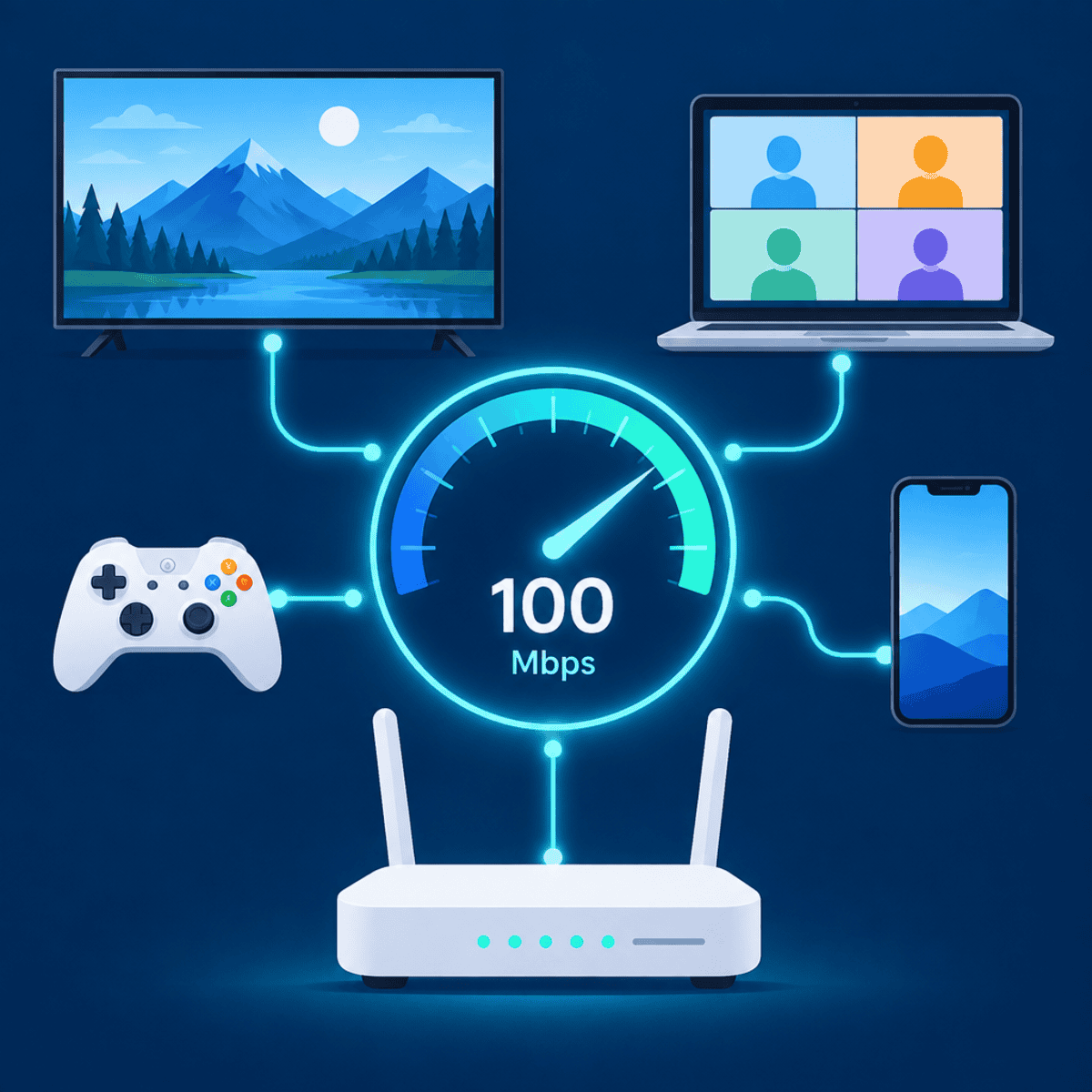
- For 100 Mbps plan: set download to 85 Mbps, upload to 8-9 Mbps
2. Device-Based Priority
- Find connected devices list in QoS settings
- Identify critical devices by MAC address or name
- Set gaming PC/console to "Highest" priority
- Set work devices and streaming to "High"
- Set general devices to "Normal" or "Low"
3. Application-Based Rules (Advanced)
- Gaming traffic: Enable gaming mode or prioritize UDP ports
- Video conferencing: Prioritize Zoom/Teams ports (8801-8810, 3478-3481)
- Streaming: Medium priority (buffering handles latency)
- Downloads/torrents: Low priority or bandwidth limit
- System updates: Schedule for off-peak hours or limit speed
Step 5: Dual-Band and Band Steering Configuration
Understanding Your WiFi Bands
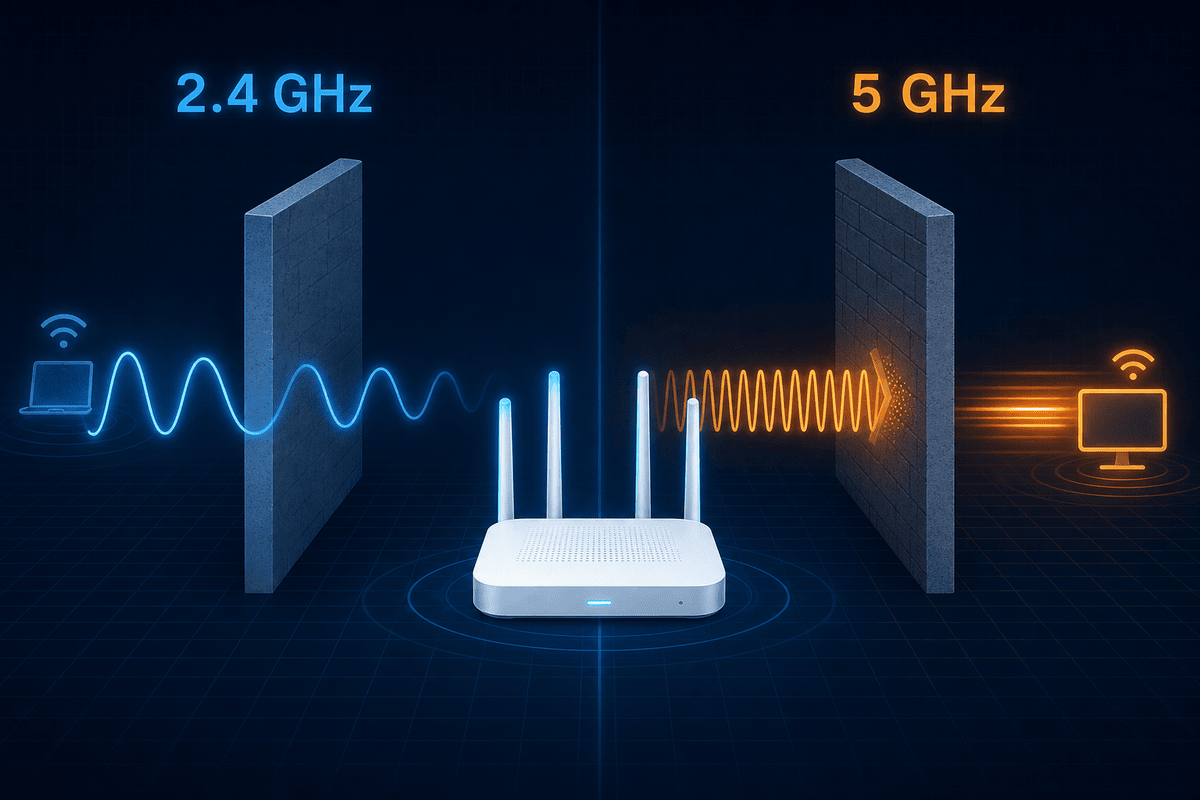
📡 2.4 GHz Band
- Range: 45-90+ meters
- Wall penetration: Excellent
- Max speed: ~150 Mbps typical
- Congestion: High (many devices)
- Best for: IoT, distant devices
🚀 5 GHz Band
- Range: 15-30 meters
- Wall penetration: Limited
- Max speed: ~500+ Mbps typical
- Congestion: Lower (fewer networks)
- Best for: Streaming, gaming, work
⚡ 6 GHz Band (WiFi 6E)
- Range: 10-20 meters
- Wall penetration: Poor
- Max speed: ~1-2 Gbps typical
- Congestion: Very low (new spectrum)
- Best for: Newest devices only
Not sure whether your router supports the latest standards? See our WiFi 6 vs WiFi 5 comparison for an interactive decider on whether an upgrade pays off in your home.
Band Steering Options
🎯 Option A: Automatic Band Steering
Best for: Non-technical users, convenience
- Single network name (SSID) for both bands
- Router automatically assigns devices
- Seamless roaming between bands
- Less control but simpler management
- Enable 'Smart Connect' or 'Band Steering'
🎛️ Option B: Separate Networks
Best for: Power users, specific control
- Different names: 'MyWiFi' and 'MyWiFi_5G'
- You choose which band per device
- Maximum control over performance
- More management effort required
- Disable band steering feature
Step 6: Advanced Performance Optimization
WiFi Standards and Router Capabilities
| WiFi Standard | Max Speed | Typical Real-World | MIMO Streams | Best For |
|---|---|---|---|---|
| WiFi 4 (802.11n) | 600 Mbps | 50-150 Mbps | 4x4 | Legacy devices only |
| WiFi 5 (802.11ac) | 3.5 Gbps | 200-500 Mbps | 4x4 | Most current devices |
| WiFi 6 (802.11ax) | 9.6 Gbps | 500-1000 Mbps | 8x8 | High-density, many devices |
| WiFi 6E (802.11ax) | 9.6 Gbps | 1-2 Gbps | 8x8 | Newest devices, least congestion |
| WiFi 7 (802.11be) | 46 Gbps | 2-5 Gbps | 16x16 | Future-proof, ultra-high performance |
Transmission Power Settings
📶 Power Level Guidelines
- 100% power: Large homes, extended range needed
- 75% power: Most homes, good balance
- 50% power: Apartments, reduces interference to neighbors
- 25% power: Small spaces, minimal interference
🎯 When to Reduce Power
- You're causing interference to neighbor networks
- You don't need full coverage area
- You're using mesh nodes or additional APs
- You want to encourage 5GHz over 2.4GHz
Advanced Wireless Settings
- Beacon Interval: Keep at 100ms default (lower = more overhead, slightly faster roaming)
- DTIM Period: Keep at 1-3 (lower = better for VoIP, higher = better battery for mobile)
- RTS/CTS Threshold: Set to 2347 to disable (reduces overhead in most environments)
- Airtime Fairness: Enable if available (prevents slow devices from slowing network)
- MU-MIMO: Enable for WiFi 5/6 (serves multiple devices simultaneously)
- OFDMA: Enable for WiFi 6 (better efficiency with many devices)
- Target Wake Time (TWT): Enable for WiFi 6 (improves device battery life)
Step 7: Guest Network Best Practices
A properly configured guest network provides visitor convenience while protecting your main network's security and performance:
🏠 Essential Guest Network Settings
- Separate SSID: Clear name like 'HomeWiFi_Guest'
- AP Isolation: Enable to block access to main network
- Bandwidth limit: 25-50% of total connection
- Strong password: Different from main network
- WPA2/WPA3 security: Never use open/unsecured
🔧 Advanced Guest Options
- Time restrictions: Limit access hours if desired
- Device limits: Cap number of simultaneous connections
- Auto-disable: Turn off when not actively hosting
- Captive portal: Optional sign-in page for tracking
- Separate VLAN: Full network segmentation (advanced)
Step 8: Firmware Updates and Maintenance
Why Firmware Updates Matter
- Security patches: Fix vulnerabilities that could allow network compromise
- Performance improvements: Optimized drivers and algorithms
- Bug fixes: Resolve stability issues and connection problems
- New features: Additional configuration options and capabilities
- Compatibility: Better support for new devices and standards
Update Process
- Check current firmware version in router admin panel
- Visit manufacturer's support website for your exact model
- Download latest firmware if newer version available
- Back up current router settings (export configuration)
- Upload firmware through admin panel
- Never interrupt the update process (can brick router)
- Verify settings after update; some may reset to defaults
Maintenance Schedule
| Frequency | Task | Purpose | Time Required |
|---|---|---|---|
| Weekly | Router restart | Clear memory, refresh connections | 5 minutes |
| Monthly | Check for firmware updates | Security and performance | 10 minutes |
| Quarterly | Review channel selection | Adapt to changing interference | 15 minutes |
| Quarterly | Audit connected devices | Remove unknown devices | 10 minutes |
| Semi-annually | Change WiFi password | Maintain security | 15 minutes |
| Annually | Full settings review | Optimize for current needs | 30 minutes |
Keep the firmware current and restart when problems appear — together they resolve many common router issues before deeper troubleshooting is needed.— Maintenance rule
Troubleshooting Common Configuration Issues
| Problem | Possible Causes | Quick Fix | Advanced Solution |
|---|---|---|---|
| Devices won't connect | Wrong password, MAC filter, device limit | Verify password, check filters | Reset network settings on device |
| Slow speeds | Wrong channel, QoS too strict, interference | Change channel, adjust QoS | Use WiFi analyzer, check for interference |
| Connection drops | Firmware bug, overheating, power issues | Restart router, check ventilation | Update firmware, check power adapter |
| Poor coverage | Low power, obstacles, single AP | Increase TX power, relocate router | Add mesh node or access point |
| High latency | QoS misconfigured, bandwidth saturation | Prioritize affected device | Enable SQM/fq_codel if available |
Detailed Troubleshooting Steps
🚫 Devices Can't Connect After Changes
- Verify new WiFi password was entered correctly
- Check if MAC filtering is accidentally blocking device
- Ensure security protocol is compatible (older devices may not support WPA3)
- Try "forgetting" network on device and reconnecting
- Test with guest network to isolate the issue
🐌 Slower Speeds After Configuration
- Verify selected channel isn't more congested than before
- Check if QoS is accidentally throttling your device
- Ensure channel width wasn't reduced unintentionally
- Confirm you're connecting to 5GHz, not 2.4GHz
- Test with wired connection to rule out WiFi issues
📶 Coverage Worse Than Before
- Check if transmission power was accidentally reduced
- Verify both 2.4GHz and 5GHz are enabled
- Ensure antennas are properly positioned (if adjustable)
- Consider if new channel has more obstacles
- Use 2.4GHz for distant devices (better range)
Configuration Checklist Summary
✅ Essential (Do First)
- Change default admin password
- Update firmware to latest version
- Set WPA2-AES or WPA3 security
- Create strong WiFi password (12+ characters)
- Disable WPS
⚡ Performance (High Impact)
- Optimize 2.4GHz channel (1, 6, or 11)
- Optimize 5GHz channel (36-48 or 149-165)
- Configure QoS for critical devices
- Set up separate or steered band configuration
- Adjust channel width appropriately
🔧 Advanced (Optional)
- Configure transmission power levels
- Set up guest network with isolation
- Enable SQM/fq_codel if available
- Fine-tune application-based QoS rules
- Disable remote management
🎯 Test your optimized configuration: After making changes, use our speed test tool to measure improvements. Run tests before and after to quantify your gains.
When to Consider Router Replacement
Sometimes optimization reaches its limits. Consider upgrading your router if:
- Router is 5+ years old – Technology advances significantly; WiFi 6 offers major improvements
- Doesn't support WiFi 5/6 – Missing modern features like MU-MIMO, OFDMA, better security
- Frequent crashes/reboots – Hardware may be failing; consistent instability
- Can't handle device count – Modern homes have 20-50+ connected devices
- No firmware updates – Security vulnerabilities remain unpatched; end-of-life
- ISP equipment limitations – ISP routers are often basic; separate router adds control
- Need mesh coverage – Large homes benefit from mesh systems over single routers
If coverage rather than raw performance is the problem, read WiFi extender vs mesh before buying — an extra broadcast point is often cheaper and more effective than a new router.
Router Upgrade Recommendations
| Home Size | Devices | Internet Speed | Recommended Router Type |
|---|---|---|---|
| Small (< 1500 sq ft) | < 15 | Up to 200 Mbps | WiFi 5 or basic WiFi 6 |
| Medium (1500-2500 sq ft) | 15-30 | Up to 500 Mbps | WiFi 6 router |
| Large (2500-4000 sq ft) | 30-50 | Up to 1 Gbps | WiFi 6 mesh system (2-3 nodes) |
| Very large (4000+ sq ft) | 50+ | 1+ Gbps | WiFi 6E mesh system (3+ nodes) |
Frequently Asked Questions: Router Configuration
What are the most important router settings to change for better performance?
Start with these five: 1) change the admin password, 2) pick a less congested Wi-Fi channel, 3) use WPA3 or WPA2-AES security, 4) enable QoS or SQM for traffic prioritization, and 5) decide between band steering and separate 2.4 GHz/5 GHz network names. The first and third protect your network; channel, QoS and band settings have the biggest effect on everyday speed and latency.
Which WiFi channel should I use for best performance?
On 2.4 GHz, use channel 1, 6 or 11 — the only non-overlapping channels in the US. On 5 GHz, channels 36–48 (UNII-1) and 149–165 (UNII-3) avoid radar-detection (DFS) interruptions. Use a Wi-Fi analyzer app to find the least congested channel; in apartments, 5 GHz is usually less crowded.
Should I use 2.4GHz or 5GHz WiFi?
Use 5 GHz for devices close to the router that need speed (streaming, gaming, work laptops). Use 2.4 GHz for devices that are far away or behind several walls, and for smart-home devices. 5 GHz is much faster at short to medium range, but its range and wall penetration are lower.
What is QoS and should I enable it?
Quality of Service (QoS) prioritizes time-sensitive traffic such as video calls and games over bulk transfers like downloads and backups. Enable it if several people or devices compete for bandwidth. Routers with smart queue management (SQM) also reduce latency under load (bufferbloat).
Is WPA3 better than WPA2 for security?
Yes. WPA3 protects much better against password-guessing attacks and adds forward secrecy. Older devices may not support it, so use WPA2/WPA3 mixed mode if some of your devices cannot connect with WPA3 only.
How often should I update my router firmware?
Turn on automatic updates if your router supports them; otherwise check for new firmware every month or two. Updates fix security vulnerabilities and bugs and can improve performance. If your router no longer receives updates, plan to replace it.
What is band steering and should I use it?
Band steering lets the router move capable devices between 2.4 GHz and 5 GHz automatically under one network name. Keep it on for hands-off management; if some devices keep landing on the slower band, turn it off and create separate network names for each band.
Should I enable or disable WPS?
Disable WPS (Wi-Fi Protected Setup). Its PIN method has known weaknesses that can let attackers recover your Wi-Fi password. Enter your password manually on new devices instead.
Conclusion: Maximizing Your Router's Potential
Proper router configuration is one of the most cost-effective ways to improve your internet experience. The optimizations in this guide can deliver noticeable speed improvements without any additional equipment purchases.
Start with the essential security settings—changing default passwords and updating firmware. Then move to performance optimizations: channel selection, QoS configuration, and band management. Finally, implement advanced settings based on your specific needs.
If you're still experiencing issues after optimization, the problem may lie elsewhere. Check our guide on why your internet is slow for broader troubleshooting, or explore WiFi speed improvement strategies that go beyond router settings.
🔍 Ready to verify your optimizations? Run our comprehensive speed test to measure the improvements and identify any remaining bottlenecks.