
Upload Speed Test
An upload speed test measures how quickly your device can send data to the internet, reported in megabits per second (Mbps). For HD Zoom or Teams calls you need at least 3 Mbps upload; live streaming on Twitch or YouTube wants 6 Mbps or more, and cloud backups benefit from 25 Mbps and up. SpeedCheck runs the test in your browser against M-Lab NDT7 and Cloudflare servers — free, no signup, no personal data stored.
Test your internet upload speed for video calls, live streaming, file sharing, and cloud backups. Get accurate Mbps measurements with our professional testing tool.
Upload speed determines how quickly you can send data to the internet – essential for video conferencing, live streaming on Twitch/YouTube, and backing up files to cloud services.
Internet Speed Test
Ready to test your connection
0.0
Mbps
What is Upload Speed?
Upload speed measures how quickly your internet connection can send data from your device to the internet. Unlike download speed, which determines how fast you receive data, upload speed affects your ability to share content, participate in video calls, and use cloud services effectively.
Upload speed is measured in megabits per second (Mbps) and varies significantly depending on your internet connection type, provider, and plan. Most residential internet plans offer asymmetric speeds, meaning your upload speed is typically lower than your download speed. Learn more about what constitutes good internet speeds.
Key Upload Speed Factors
- Connection Type: Fiber offers the best upload speeds
- ISP Plan: Business plans typically offer better upload speeds
- Network Congestion: Peak hours can slow upload performance
- Distance to Server: Closer servers provide better performance
- Hardware Quality: Router and modem capabilities matter
Upload vs Download Speed
Did you know? Fiber internet can offer symmetric speeds (equal upload and download), while cable and DSL are inherently asymmetric. Compare the differences in our broadband vs fiber guide.
Understanding Symmetric vs Asymmetric Internet
Asymmetric Connection
Most residential internet plans are asymmetric, meaning download speeds are significantly faster than upload speeds. This design reflects typical home usage patterns where users consume more content than they create.
Typical Asymmetric Ratios:
- • Cable: 10:1 ratio (100/10 Mbps)
- • DSL: 8:1 ratio (24/3 Mbps)
- • Satellite: 20:1 ratio (100/5 Mbps)
- • 5G Home: 5:1 ratio (300/60 Mbps)
Symmetric Connection
Fiber optic connections can offer symmetric speeds where upload matches download. This is ideal for professionals who frequently upload large files, stream content, or participate in video conferences.
Who Benefits from Symmetric:
- • Content Creators: Uploading videos, streaming
- • Remote Workers: Video calls, cloud collaboration
- • Small Businesses: File sharing, backups
- • Developers: Code repositories, deployments
Platform-Specific Upload Requirements
Video Conferencing
Screen sharing adds 1-2 Mbps. See our video call guide.
Live Streaming
Recommended: 1.5x these speeds for stability during peak encoding.
Cloud Services
Large file backups benefit from 25+ Mbps for timely completion.
Social Media Uploads
Higher speeds reduce upload time significantly for large video files.
Gaming & Streaming
Ping/latency matters more than upload speed for gaming.
Professional Work
Consider symmetric fiber for professional workflows.
Upload Speed Requirements by Activity
| Activity | Minimum | Recommended | Professional | Notes |
|---|---|---|---|---|
| HD Video Calls | 1.5 Mbps | 3-5 Mbps | 10+ Mbps | Screen sharing needs extra bandwidth |
| 4K Video Calls | 3 Mbps | 6-8 Mbps | 15+ Mbps | Multiple participants increase needs |
| Live Streaming 1080p | 5 Mbps | 8-10 Mbps | 15+ Mbps | Higher bitrate = better quality |
| Live Streaming 4K | 15 Mbps | 25-35 Mbps | 50+ Mbps | Platform encoding varies |
| Cloud Backup | 2 Mbps | 10 Mbps | 50+ Mbps | Large files need more speed |
| VPN/Remote Desktop | 1 Mbps | 3-5 Mbps | 10+ Mbps | Graphics work needs more |
| Social Media Uploads | 2 Mbps | 5-10 Mbps | 25+ Mbps | 4K video uploads need higher |
| Online Gaming | 0.5 Mbps | 1-3 Mbps | 5+ Mbps | Ping matters more |
Pro Tip: Always test at different times of day. Network congestion during peak hours (evenings, weekends) can significantly impact your upload performance. Read more about factors affecting internet speed.
Industry-Specific Upload Requirements
Business & Corporate
- Video Conferencing: 5-10 Mbps per participant
- File Sharing: 10-25 Mbps for large documents
- Cloud Collaboration: 3-8 Mbps continuous
- Backup Systems: 25+ Mbps for enterprise data
Content Creation
- YouTube (4K): 35-45 Mbps upload
- Twitch Streaming: 6-8 Mbps (1080p 60fps)
- Photography: 10-25 Mbps for RAW files
- Video Editing: 50+ Mbps for collaboration
Healthcare & Education
- Telemedicine: 3-5 Mbps HD video
- Medical Imaging: 25+ Mbps for large files
- Online Teaching: 5-8 Mbps with screen share
- Student Collaboration: 2-5 Mbps per user
Upload Speed by Connection Type
| Connection Type | Typical Upload | Max Upload | Symmetric? | Best For |
|---|---|---|---|---|
| Fiber (FTTH) | 100-500 Mbps | Up to 10 Gbps | ✓ Often | Content creators, businesses |
| Cable | 5-35 Mbps | Up to 100 Mbps | ✗ No | Home offices, streaming |
| DSL | 1-10 Mbps | Up to 20 Mbps | ✗ No | Basic video calls |
| 5G Home | 20-80 Mbps | Up to 300 Mbps | ✗ No | Remote work, streaming |
| Satellite | 2-5 Mbps | Up to 10 Mbps | ✗ No | Rural areas, basic use |
| Starlink | 10-20 Mbps | Up to 40 Mbps | ✗ No | Remote locations |
Learn more about connection types in our broadband vs fiber comparison.
Upload Speed Troubleshooting
Common Upload Speed Issues
- • Check your internet plan's upload limits
- • Test at different times to identify peak congestion
- • Restart your router and modem
- • Update router firmware to latest version
- • Check for ISP throttling during peak hours
- • Check for background uploads (cloud sync, updates)
- • Scan for malware consuming bandwidth
- • Configure QoS settings on your router
- • Test wired vs. wireless connections
- • Monitor bandwidth usage by device
- • Switch to 5GHz band for better performance
- • Reduce distance to router
- • Check for WiFi interference
- • Consider mesh network for large homes
Optimization Tips
- • Use wired Ethernet connections for critical uploads
- • Upgrade to a modern router (Wi-Fi 6/6E)
- • Position router centrally and elevated
- • Use 5GHz band for less interference
- • Consider a dedicated upload device
- • Schedule large uploads during off-peak hours (2-6 AM)
- • Configure upload bandwidth limits in applications
- • Use compression when possible (zip files)
- • Close unnecessary applications during uploads
- • Enable QoS to prioritize important traffic
- • Compare upload speeds across ISP plans
- • Consider business-class internet for symmetric speeds
- • Check if fiber is available in your area
- • Negotiate with ISP for better upload allocation
How VPNs Affect Upload Speed
VPNs add encryption overhead and route traffic through remote servers, which can reduce upload speeds by 10-30% depending on the VPN protocol and server distance. Learn more in our comprehensive VPN speed guide.
VPN Protocol Speed Comparison:
Tips for VPN Upload Performance:
- Use WireGuard protocol for minimal speed loss
- Connect to geographically close VPN servers
- Use split tunneling to exclude bandwidth-heavy apps
- Test different VPN servers for best performance
- Choose a VPN provider with fast servers
Upload Speed FAQ
Comprehensive answers to common upload speed questions
Why is my upload speed slower than download?
What's a good upload speed for working from home?
Does upload speed affect gaming performance?
Can I increase my upload speed without upgrading my plan?
How often should I test my upload speed?
What factors can slow down upload speeds?
How accurate is this upload speed test?
What upload speed do I need for live streaming?
Does VPN affect upload speed?
What's the difference between symmetric and asymmetric internet?
Why is my Zoom/Teams video quality poor even with good upload speed?
How do I prioritize upload traffic for important applications?
Related Speed Tests
Ping Test
Test your network latency and responsiveness for gaming and real-time applications.
Jitter Test
Measure network stability and consistency for VoIP calls and video conferencing.
WiFi Speed Test
Optimize your wireless network performance with our WiFi-focused speed test.
Full Speed Test
Complete analysis including download, upload, ping, and jitter measurements.
Related Articles
Guides to understand and improve your upload speed.

Upload Speed vs Download Speed: Complete Guide + 9 Optimization Steps
Understand the key differences between upload and download speed, why both matter for video calls, gaming, streaming, and remote work. Includes 9-step optimization guide, speed requirements tables, 8 FAQs, and troubleshooting tips.

Upload Speed for Video Calls: Complete Requirements Guide + 9 Optimization Steps (2026)
Master upload speed for video calls: exact requirements for Zoom (3.8 Mbps), Teams (4 Mbps), Google Meet, and more. Includes 9-step optimization guide, troubleshooting table, multi-user bandwidth calculator, and 8 expert FAQs.
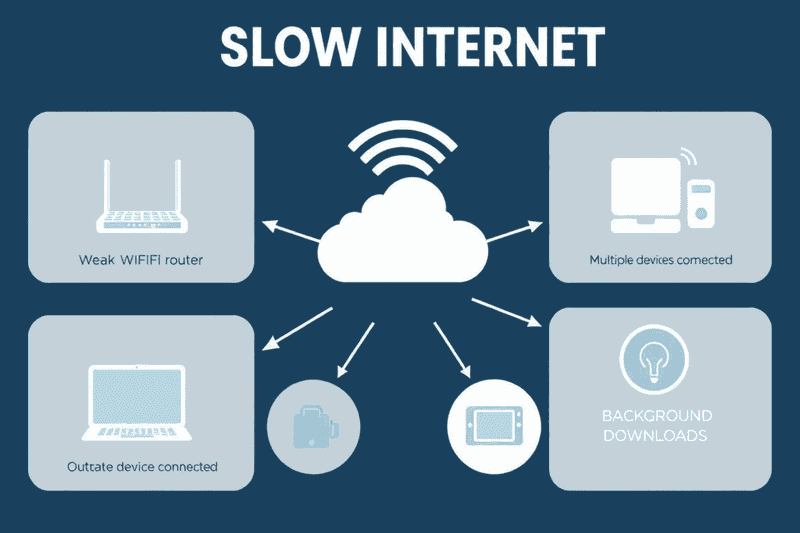
What Affects Internet Speed? 12 Key Factors & How to Fix Them (2026)
Discover the 12 major factors affecting internet speed: ISP infrastructure, connection type, network congestion, equipment limitations, and more. Includes step-by-step diagnostic guide, 8 FAQs, comparison tables, and actionable fixes to boost your connection.
How Our Speed Test Works
Transparency in testing methodology. Understand exactly how we measure your internet speed and what the results can and cannot tell you.
Multi-Server Testing
How we ensure accurate measurements across different network conditions
- Compares nearby M-Lab servers by measured connection latency and picks the fastest
- Tries the next nearby server automatically if one does not respond
- Falls back to Cloudflare edge endpoints if M-Lab is unreachable
Parallel Connection Testing
Why we use multiple connections to measure true throughput
- Opens two parallel NDT7 streams per direction
- Overcomes single-connection TCP limitations
- Reports the combined throughput of both streams
Real-Time Measurements
How we measure speed variations and connection stability
- Samples throughput about four times per second
- Calculates jitter as the variation in measured round-trip time
- Reports the server-side TCP retransmission rate (an indicator, not a direct packet-loss count)
- Compares idle and loaded latency as a bufferbloat indicator
Privacy-First Design
No account required, results stay in your browser
- All tests run locally in your browser
- Test results are not stored on our servers
- Your IP address is used by M-Lab Locate to choose a nearby server
- Measurements run through M-Lab NDT7, which publishes measurement data including the client IP
Test Duration
How long a measurement takes
- NDT7 measures each direction for up to about 10 seconds
- A full test usually finishes in under 30 seconds
- Short tests reflect current conditions, not a long-term average
- Repeat tests at different times for a fuller picture
Browser-Based Measurement
What runs where, and its limits
- Uses WebSockets for NDT7 and HTTPS requests to Cloudflare for the dedicated ping test
- Uses the same open NDT7 protocol as M-Lab research measurements
- Accounts for device and browser limitations
- Wired tests are the most reliable reference point
Built on Open Protocols
M-Lab NDT7
Open TCP throughput measurement protocol
WebSocket
Transport for NDT7 test streams
HTTPS Timing
Round-trip timing for the dedicated ping test
HTTPS / WSS
Encrypted connections
Internet Speed Requirements by Activity
Use these factual benchmarks to understand if your internet speed meets your needs. All speeds are measured in Mbps (megabits per second).
Web Browsing & Email
Basic internet activities like browsing websites and checking email
HD Video Streaming
1080p streaming on Netflix, YouTube, or similar platforms
4K Video Streaming
Ultra HD streaming requires significantly more bandwidth
Video Conferencing
Zoom, Teams, or Google Meet calls in HD quality
Online Gaming
Casual online gaming with stable connection
Competitive Gaming
Esports and competitive gaming requiring minimal latency
Smart Home Devices
IoT devices, security cameras, and smart home automation
Remote Work
File uploads, cloud sync, and video calls simultaneously
Key Insights
Minimum for modern households with multiple devices and 4K streaming
Ping required for competitive gaming and real-time applications
Upload speed needed for reliable video conferencing and cloud work
Internet Speed Guide
Find out what internet speed you need for your online activities
Understanding your internet speed requirements helps you choose the right plan and troubleshoot connection issues effectively.
Basic Internet
- Web Browsing
- Social Media
- Music Streaming
HD Streaming
- Netflix HD
- YouTube 1080p
- Video Calls
- Online Shopping
Gaming & 4K
- Online Gaming
- 4K Streaming
- Large Downloads
- Smart Home
Work From Home
- Video Conferencing
- Cloud Sync
- VPN
- Multiple Users
Understanding Ping Latency
Lower ping values mean better response times for interactive applications and gaming