
Most slow internet problems come down to one of three things: weak WiFi signal, an overloaded router, or your ISP delivering less than promised. Start by running a speed test — if you're getting under 80% of your plan, the issue is real. Then test with an Ethernet cable. If speeds jump, fix your WiFi. If they stay slow, the problem is your modem, ISP, or wiring.
Few things are more frustrating than a sluggish internet connection. Whether your movie keeps buffering, your video call freezes mid-sentence, or your game lags at the worst possible moment, slow internet disrupts everything we do online.
The good news? Most causes of slow internet are identifiable and fixable. In this comprehensive guide, we'll walk through the 10 most common reasons your internet is slow and provide actionable solutions for each. Whether the problem is your router, your ISP, or something in between, you'll know exactly how to diagnose and fix it.
Quick Reference: 10 Causes of Slow Internet
| Cause | Likelihood | Difficulty to Fix |
|---|---|---|
| Weak WiFi Signal | Very High | Easy |
| Too Many Devices | High | Easy |
| Outdated Router/Modem | High | Medium |
| ISP Issues/Throttling | Medium | Varies |
| Background Apps & Downloads | High | Easy |
| Malware or Viruses | Low-Medium | Medium |
| VPN or Proxy Overhead | Medium | Easy |
| Outdated Device Hardware | Medium | Medium-Hard |
| Network Congestion (Peak Hours) | Medium | Hard |
| High Latency/Ping Issues | Medium | Medium |
Common Causes of Slow Internet (In Detail)
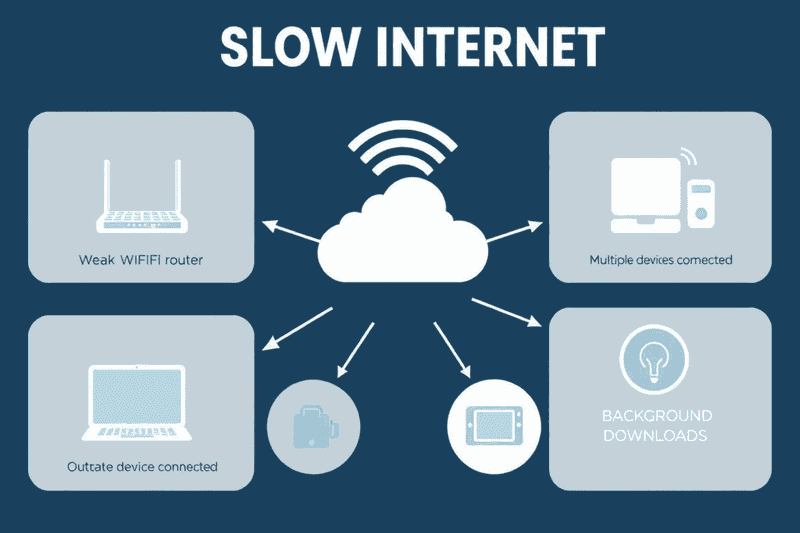
1. Weak WiFi Signal
WiFi signals weaken as they travel through walls, floors, and furniture. If you're far from your router or separated by multiple walls, your connection speed drops significantly. Interference from other electronic devices (microwaves, baby monitors, cordless phones) can also degrade signal quality.
How to Fix:
- • Move your router to a central, elevated location
- • Switch from 2.4GHz to 5GHz band for faster speeds at shorter range
- • Consider a mesh WiFi system for large homes
- • Use WiFi extenders for dead zones
Unsure which to buy? Compare both in our WiFi extender vs mesh guide.
2. Too Many Devices Connected
Every device on your network shares the available bandwidth. Smartphones, smart TVs, tablets, laptops, gaming consoles, smart home devices—they all consume internet even when you're not actively using them (background updates, syncing, etc.). A household with 20+ connected devices can easily saturate a moderate internet plan.
How to Fix:
- • Disconnect devices you're not using
- • Enable Quality of Service (QoS) on your router to prioritize important traffic
- • Upgrade to a faster internet plan if you regularly have 10+ active devices
- • Schedule large downloads for off-peak hours
3. Outdated Router or Modem
Networking hardware has evolved rapidly. A router from 5+ years ago likely doesn't support WiFi 6, may struggle with modern bandwidth demands, and could have security vulnerabilities. Similarly, older modems may not support your ISP's current speeds.
How to Fix:
- • Replace routers every 3-5 years
- • Upgrade to a WiFi 6 or WiFi 6E router for modern performance
- • Ensure your modem supports DOCSIS 3.1 (for cable) or is compatible with your fiber plan
- • Keep router firmware updated
4. Internet Service Provider (ISP) Issues
Sometimes the problem isn't on your end. ISPs can experience outages, infrastructure problems, or intentionally throttle speeds during peak times or for specific types of traffic (streaming, gaming, torrents). If you're consistently getting much less than advertised speeds, your ISP may be the culprit.
How to Fix:
- • Run speed tests at different times and document results
- • Check your ISP's outage map or status page
- • Contact support with evidence if speeds are consistently below 80% of advertised
- • Consider switching providers if issues persist
5. Background Apps & Downloads
Software updates, cloud syncing (Dropbox, Google Drive, iCloud), automatic game updates, and streaming services can silently consume massive amounts of bandwidth. A single Windows update can be several gigabytes; Steam game updates can be even larger.
How to Fix:
- • Check Task Manager (Windows) or Activity Monitor (Mac) for bandwidth usage
- • Pause cloud syncing during important activities
- • Schedule updates for overnight or off-peak hours
- • Disable auto-updates on gaming platforms when gaming
6. Viruses or Malware
Malware can hijack your bandwidth for malicious purposes—sending spam, participating in botnets, or mining cryptocurrency. Some malware specifically targets network connections, causing slowdowns even when you're not actively using the infected device.
How to Fix:
- • Run a full system scan with reputable antivirus software
- • Check for unusual network activity in Task Manager
- • Keep your operating system and software updated
- • Consider a factory reset if infection is severe
7. VPNs or Proxies
VPNs add overhead to your connection because data must travel to the VPN server (often in another country) and undergo encryption/decryption. Free VPNs often have overloaded servers, causing significant slowdowns. Even good paid VPNs reduce speed somewhat, especially on distant servers.
How to Fix:
- • Connect to a VPN server closer to your location
- • Use a premium VPN with optimized servers
- • Try different VPN protocols (WireGuard is typically fastest)
- • Disconnect VPN when maximum speed is needed
8. Outdated Device Hardware
Even with fast internet, older devices with outdated network adapters can't take advantage of modern speeds. A laptop from 2015 might have a WiFi 4 (802.11n) adapter limited to 150 Mbps, even if your internet plan is 500 Mbps.
How to Fix:
- • Test speeds on multiple devices to identify bottlenecks
- • Use a USB WiFi adapter with WiFi 6 support for older laptops
- • Use wired Ethernet connections for stationary devices
- • Consider upgrading devices older than 5-7 years
9. Network Congestion (Peak Hours)
Cable internet and some DSL connections share infrastructure with neighbors. During peak hours (typically 7-11 PM), when everyone is streaming and gaming, speeds can drop noticeably. This is less common with fiber connections which don't share bandwidth the same way.
How to Fix:
- • Schedule bandwidth-heavy activities for off-peak hours
- • Switch to fiber internet if available in your area
- • Pre-download content instead of streaming during peak times
- • Contact your ISP if congestion is severe and persistent
10. High Latency (Ping) Issues
Even with good download/upload speeds, high latency makes internet feel slow. Latency measures the delay between sending a request and receiving a response. High ping (>100ms) causes lag in video calls, gaming, and browsing — see our remote work speed requirements for typical latency thresholds. This is especially problematic for satellite internet users.
How to Fix:
- • Use a wired Ethernet connection for lowest latency
- • Choose game/service servers closer to your location
- • Close background applications that may be causing latency spikes
- • Consider fiber internet for the lowest possible latency
How to Diagnose Slow Internet: Step-by-Step
Follow this systematic approach to identify the root cause of your slow internet:
Run a speed test
Use SpeedCheck to measure your current download speed, upload speed, and ping. Test multiple times throughout the day to identify patterns. Compare results to your ISP's advertised speeds.
Test with a wired connection
Connect your computer directly to the router via Ethernet cable. If speeds improve significantly, the issue is WiFi-related (signal strength, interference, or router placement).
Restart your networking equipment
Unplug your modem and router, wait 30 seconds, then plug in the modem first. Wait for it to fully connect, then plug in the router. This clears cached data and refreshes your connection.
Check for bandwidth-hogging devices and apps
Identify devices or applications consuming excessive bandwidth—streaming services, cloud backups, software updates, or other users. Pause unnecessary downloads and check for malware running in the background.
Optimize your WiFi setup
Move your router to a central, elevated location. Switch to the 5GHz band for less interference. Change the WiFi channel if neighbors are on the same one. Consider a mesh system for large homes.
Contact your ISP if issues persist
If speeds consistently fall below 80% of advertised rates after troubleshooting, contact your ISP with documented speed test results. They can check for line issues, reset your connection remotely, or send a technician.
What Speeds Should You Actually Expect?
Understanding what speeds you should get helps identify if there's truly a problem:
| Connection Type | Typical Download | Typical Upload | Latency |
|---|---|---|---|
| Fiber (FTTH) | 100-2000 Mbps | 100-2000 Mbps | 1-10ms |
| Cable | 25-1000 Mbps | 5-50 Mbps | 15-40ms |
| DSL | 5-100 Mbps | 1-10 Mbps | 25-50ms |
| 5G Home | 100-1000 Mbps | 20-100 Mbps | 20-50ms |
| 4G LTE | 10-50 Mbps | 5-20 Mbps | 30-70ms |
| Satellite | 25-100 Mbps | 3-10 Mbps | 500-700ms |
When to Contact Your ISP
Before calling, prepare the following:
- Speed test results from multiple times of day (document dates, times, and results)
- Evidence you've tested with a wired connection to rule out WiFi issues
- Your modem and router model numbers
- Description of when the problem started and any changes you made
- List of troubleshooting steps you've already tried
Most ISPs are required to provide speeds close to what they advertise. With documented evidence, you're more likely to get a resolution—whether that's a technician visit, a credit, or an honest assessment of infrastructure limitations in your area.
Frequently Asked Questions: Slow Internet
Why is my internet so slow all of a sudden?
Sudden slowdowns usually come from network congestion at busy times, background downloads or updates, a provider outage or network problem, malware, many devices active at once, or an overheating router. Run a speed test over Wi-Fi and then over Ethernet to see whether the problem is inside your home or upstream.
How do I fix slow WiFi in my house?
1) Move your router to a central, elevated spot away from thick walls and metal. 2) Use the 5 GHz band for faster speeds at shorter range. 3) Update the router's firmware. 4) Change the Wi-Fi channel to reduce interference from neighbors. 5) Consider a mesh system for larger or multi-story homes. 6) Pause heavy background traffic such as cloud backups while you need the bandwidth.
Is 100 Mbps considered slow internet?
No. 100 Mbps is enough for most households: it supports several HD streams, video calls and browsing at the same time. Homes with many simultaneous users, several 4K streams or frequent large uploads and downloads may benefit from 200–500 Mbps.
Why is my internet slow only at night?
Evening slowdowns are usually congestion. Between roughly 7 and 11 PM more people in your area stream, game and download, which strains shared parts of the network. This is common on cable and fixed wireless. Schedule large downloads for off-peak hours, test over Ethernet to rule out Wi-Fi, and keep evening results if you contact your provider.
Can a VPN make my internet slower?
Yes. Your traffic is encrypted and takes a detour through the VPN server, which adds latency and usually lowers throughput. How much depends on the server's distance and load and on the protocol — WireGuard is generally lighter than OpenVPN. Run a speed test with and without the VPN to see the effect on your connection.
How often should I restart my router?
Restart it when you notice slowdowns or connection drops; there is no need for a fixed schedule on most modern routers. A restart clears the router's memory and refreshes the connection to your provider, which resolves many temporary problems. If you need to restart often, update the firmware or consider replacing an old router.
Does the number of devices connected affect internet speed?
What the devices do matters more than how many there are. A few 4K streams, game downloads or cloud backups at the same time can fill a 100 Mbps connection, while dozens of idle smart-home devices use very little bandwidth. Many active devices on Wi-Fi also compete for airtime, which can raise latency.
What is a good ping for internet connection?
Under 50 ms is good for general use, under 30 ms for gaming and under 20 ms for competitive gaming. Ping above 100 ms causes noticeable lag in video calls, online games and other real-time applications. For interactive use, stable low ping often matters more than raw download speed.
Why is my wired connection slower than WiFi?
Check for an old or damaged Ethernet cable (use Cat5e or Cat6), a faulty port on the router or device, outdated network drivers, or an Ethernet port that only supports 100 Mbps — check that your adapter reports a 1 Gbps (or faster) link. Any of these can cap a wired connection below your Wi-Fi speed.
How can I tell if my ISP is throttling my internet?
Throttling targets specific traffic or applies after a data threshold, so the clearest sign is one service being slow while general speed tests are fine — and improving when you use a VPN. Slow speeds only at peak hours are usually congestion rather than throttling. Check your plan's terms for reduced speeds after a data threshold (common on mobile and some fixed wireless plans), and document results with and without a VPN before contacting your provider.
What is the first thing I should check when my internet is slow?
Run a speed test first to confirm the problem and compare the result with your plan. Then test over a wired Ethernet connection: if speeds jump significantly, the issue is Wi-Fi-related. If speeds stay slow on Ethernet, the problem is upstream (modem, wiring or provider), not your Wi-Fi setup.
Can outdated browser or operating system cause slow internet?
Yes, indirectly. Outdated browsers support modern protocols such as HTTP/3 and TLS 1.3 less well or not at all, so websites can feel slower even on a fast connection. Outdated operating systems may have old network drivers or background processes using bandwidth. Update your browser and operating system to rule this out before blaming your provider.
Why does my internet work fine on one device but be slow on another?
Then the slow device is usually the bottleneck, not your internet. Common causes are an old Wi-Fi adapter limited to 802.11n, weak signal in that room, a faulty Ethernet cable or port, malware, or background apps on that device. Compare speed test results across devices in the same spot to confirm.
How long should I wait before contacting my ISP?
Contact your provider once you have (1) run several speed tests over 24–48 hours that stay well below the typical speed listed on your plan's FCC Broadband Facts label, (2) tested over a wired connection to rule out Wi-Fi, and (3) restarted your modem and router. Bring timestamps and numbers — documented results are much more likely to get a technician visit.
Slow Internet Decision Tree: Find the Fix in Under 5 Minutes
Instead of trying every fix in random order, use this decision tree to identify the real bottleneck quickly. Each branch ends with a concrete next step — no guesswork.
Step 1 — Run a speed test on the device you're using
Open speed-check.net/internet-speed-test right next to your router (within 6 feet, no walls). Note the download, upload, and ping numbers.
- Getting 80%+ of your plan? Throughput looks fine — continue to Step 4 to check latency and stability.
- Getting less than 80%? Continue to Step 2.
Step 2 — Plug in an Ethernet cable, retest
Connect a laptop or desktop directly to a free LAN port on your router with a Cat5e or Cat6 cable. Repeat the speed test.
- Ethernet speeds jump to 80%+ of plan? Your WiFi is the bottleneck — go to Step 3a.
- Ethernet speeds stay slow? Your ISP, modem, or wiring is the issue — go to Step 3b.
Step 3a — Fix WiFi (this is the most common case)
- Move your router central and elevated (single biggest gain — up to 50% faster).
- Switch your device to the 5 GHz band if you're within 30 feet of the router.
- Pick channel 1, 6, or 11 on 2.4 GHz using a free WiFi analyzer app.
- If your router is older than 4-5 years, upgrade to WiFi 6.
Full walkthrough in our WiFi improvement guide.
Step 3b — Fix the line (ISP / modem / wiring)
- Power-cycle modem first, then router (30 seconds unplugged each).
- Check your modem's signal levels in its admin page — high SNR margin and low correctables matter on cable.
- Test speeds at 3 different times of day. If only evenings are slow, it's network congestion.
- Document 3+ failing tests with timestamps, then contact your ISP.
Step 4 — Speeds are fine but internet still feels slow?
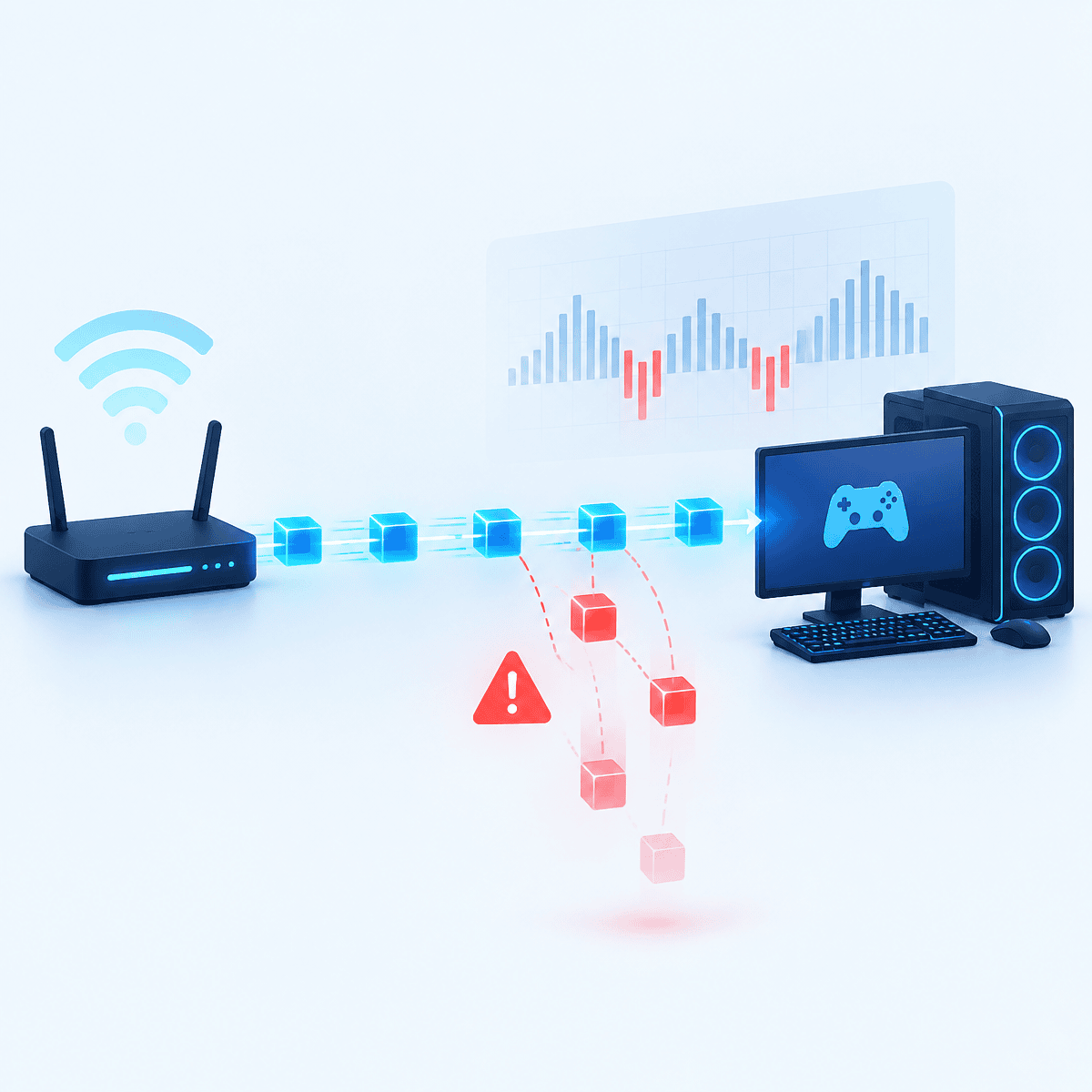
You probably have a latency or jitter problem, not a bandwidth problem. Run our ping test and jitter test. Ping over 100ms or jitter over 20ms makes pages feel sluggish, calls drop, and games lag — even on a gigabit connection. If calls freeze and games rubber-band while speeds look perfect, packet loss is a likely suspect. Jitter alone does not prove loss. A 100-packet ping can show loss to that one target during that measurement; a 0% result does not rule out loss to other destinations or loss that comes and goes, so repeat it when the problem occurs — see how to fix packet loss.
Final Thoughts
Slow internet is frustrating—but it's rarely mysterious. In most cases, the cause falls into one of the 10 categories we've covered: WiFi signal issues, too many devices, outdated hardware, ISP problems, background downloads, malware, VPN overhead, old device adapters, network congestion, or high latency.
Start with the basics: run a speed test, try a wired connection, and restart your equipment. These three steps alone solve a surprising number of problems. If issues persist, work through the more specific solutions for each cause.
Many slow internet issues come down to three factors: Wi-Fi signal strength, device congestion and outdated router hardware. Check those before assuming it's your ISP.— Where to start