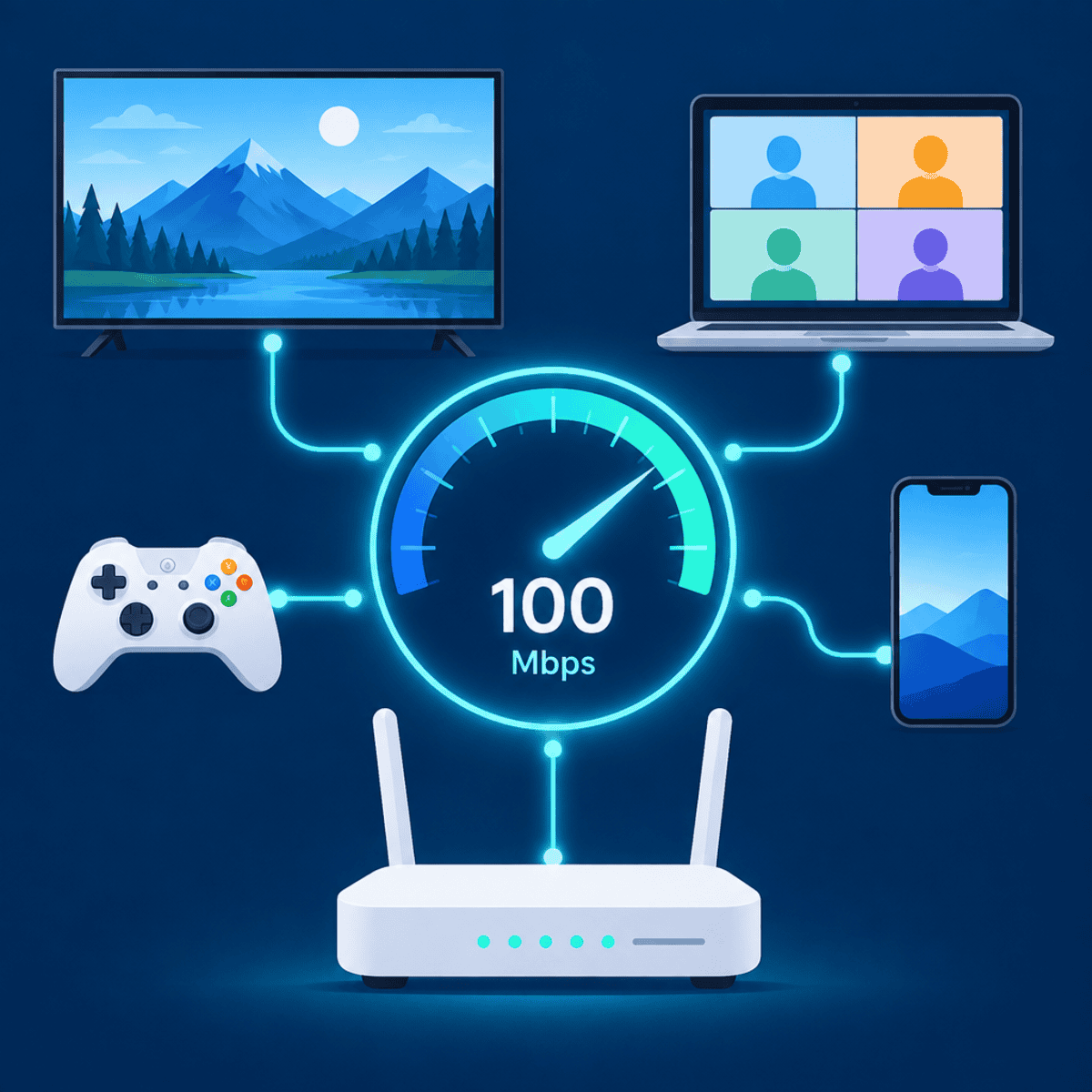

You can often improve home Wi-Fi speed substantially without upgrading your internet plan, if your wireless setup is the bottleneck. The biggest gains come from three changes: move your router to a central, elevated location (up to 50% faster), switch to the 5GHz band when you're within 30 feet (up to 2x throughput), and pick a clear WiFi channel using a free analyzer app (eliminates neighbor interference). Update firmware and enable QoS for stable performance under load.
Is your WiFi painfully slow despite paying for fast internet? You're not alone. Millions of people experience frustrating WiFi speeds that don't match their internet plan, whether they're trying to work from home, stream 4K videos, or compete in online games. The good news: most WiFi problems can be fixed without upgrading your internet plan.
In this comprehensive guide, we'll show you exactly how to boost your WiFi speed with proven optimization techniques. From simple router adjustments that take minutes to advanced configuration tweaks, you'll learn everything you need to dramatically improve your wireless internet experience. Start by running a WiFi speed test to establish your baseline (our guide to measuring your speed accurately covers best practice), then follow our step-by-step optimization guide.
What Affects Your WiFi Speed?
Before diving into solutions, understanding what slows down WiFi helps you target the right fixes. Your wireless connection speed depends on multiple factors, many of which you can control. For a detailed analysis, see our comprehensive guide on what affects internet speed.
| Factor | Impact on Speed | How Fixable | Priority |
|---|---|---|---|
| Router Placement | Up to 50% speed loss | Very Easy | High |
| WiFi Channel Congestion | Up to 40% speed loss | Easy | High |
| Distance from Router | Up to 80% speed loss | Moderate | High |
| Physical Obstacles (walls) | Varies by wall material and band | Difficult | Medium |
| Outdated Router Hardware | Up to 90% slower | Requires purchase | Medium |
| Device Interference | 10-30% speed loss | Easy | Medium |
| Too Many Devices | Variable | Moderate | Low |
Understanding the difference between upload and download speed is also important, as WiFi issues can affect each differently. Gaming and video calls rely heavily on stable connections, which is why many users specifically test their ping latency and jitter.
Step 1: Optimize Router Placement
Router placement is the single most impactful factor for WiFi performance. Moving your router to the right location can boost speeds by 50% or more without changing any settings. Most people hide their router in a corner or closet, which is the worst possible choice.
Router Placement Best Practices
| Placement Type | Speed Impact | Signal Coverage | Recommendation |
|---|---|---|---|
| Central, elevated position | Best overall | Excellent | Best choice |
| Near main work/entertainment area | Strong where you use it most | Good for that area | Good alternative |
| Against exterior wall | Wastes coverage outdoors | Poor on opposite side | Avoid if possible |
| In closet or cabinet | Heavily reduced | Very poor | Move immediately |
| On floor behind furniture | Heavily reduced | Very poor | Move immediately |
WiFi Signal Loss by Distance and Obstacles
| Signal Strength (RSSI) | Rating | What to Expect | Typical Situation |
|---|---|---|---|
| -30 to -50 dBm | Excellent | Full speed for your plan and device | Same room or adjacent room |
| -50 to -60 dBm | Very good | Fast, stable for streaming and calls | One or two rooms away |
| -60 to -67 dBm | Good | Reliable for video calls; speed starts to drop | Through a couple of walls |
| -67 to -75 dBm | Fair | Noticeably slower; calls may stutter | Far rooms, another floor |
| -75 to -85 dBm | Weak | Slow and unreliable | Far corner, basement or garage |
| Below -85 dBm | Very weak | Frequent drop-outs | Dead zone — add a mesh node or access point |
Antenna Positioning Tips
- Position antennas vertically for horizontal coverage (single floor)
- Angle antennas at 45° for multi-floor homes
- If you have 3 antennas, point one straight up and two at 45° angles
- Internal antenna routers work best when elevated with clear line of sight
Step 2: Choose the Right WiFi Channel
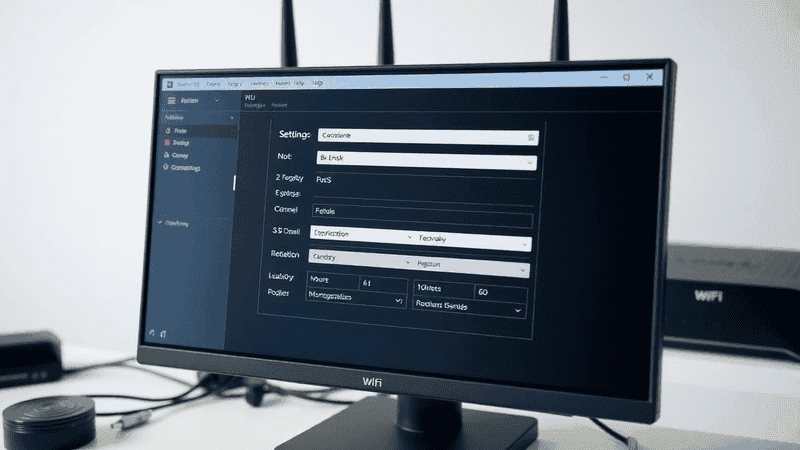
WiFi channels are like lanes on a highway. When too many networks use the same channel, traffic slows down for everyone. Finding a less congested channel can dramatically improve your speeds, especially in apartments or dense neighborhoods. For detailed configuration steps, check our router configuration guide.
2.4GHz vs 5GHz Channels
| Feature | 2.4GHz Band | 5GHz Band | Best For |
|---|---|---|---|
| Maximum Speed | Up to 600 Mbps | Up to 1300+ Mbps | 5GHz wins |
| Range | Longer (150+ feet) | Shorter (50-80 feet) | 2.4GHz wins |
| Wall Penetration | Better | Worse | 2.4GHz wins |
| Interference | High (crowded) | Low (less devices) | 5GHz wins |
| Best Channels | 1, 6, or 11 only | Any uncongested | 5GHz more flexible |
| Device Support | All devices | Newer devices only | 2.4GHz more compatible |
Step 3: Update Router Firmware
Router firmware updates are often overlooked but can provide significant speed improvements, security patches, and bug fixes. Manufacturers regularly release updates that optimize performance and add new features.
How to Update Your Router Firmware
- Log into your router's admin panel (usually 192.168.1.1 or 192.168.0.1)
- Navigate to Administration, Maintenance, or System settings
- Look for Firmware Update, Software Update, or Router Update
- Click 'Check for Updates' or download the latest version from your router manufacturer's website
- Install the update and wait for the router to restart (this takes 2-5 minutes)
- Verify the update was successful by checking the firmware version number
Step 4: Configure QoS for Priority Traffic
QoS (Quality of Service) lets you prioritize bandwidth for important activities like video calls, gaming, or streaming. This ensures smooth performance even when multiple devices are competing for bandwidth.
| Activity | Priority Level | Bandwidth Allocation | Why It Matters |
|---|---|---|---|
| Video Calls (Zoom, Teams) | Highest | 5-10 Mbps reserved | Prevents freezing and audio drops |
| Online Gaming | High | 3-5 Mbps reserved | Reduces lag and ping spikes |
| 4K Streaming | Medium-High | 25 Mbps reserved | Prevents buffering |
| HD Streaming | Medium | 10 Mbps reserved | Consistent quality |
| Web Browsing | Normal | Shared bandwidth | Works fine with any leftover bandwidth |
| Background Downloads | Low | Limited | Prevents hogging bandwidth |
This is especially important for video calls where both upload and download stability matter, and for gaming where low ping is critical.
Step 5: Eliminate WiFi Interference
Your WiFi shares radio frequencies with many household devices, causing interference that slows your connection. Understanding the different connection types, as explained in our broadband vs fiber comparison, helps you understand why wireless is more susceptible to interference.
| Interference Source | Frequency Affected | Speed Impact | Solution |
|---|---|---|---|
| Microwave ovens | 2.4GHz | Up to 50% while running | Keep router 10+ feet away, use 5GHz |
| Baby monitors | 2.4GHz (model-dependent) | Varies with device and activity | Move it away from the router or use the 5 GHz band |
| Bluetooth devices | 2.4GHz | 10-25% when active | Use 5GHz for nearby devices |
| Cordless phones (old) | 2.4GHz / 5.8GHz | 30-50% during calls | Replace with DECT 6.0 phones |
| Neighboring WiFi networks | Both bands | 10-40% (varies) | Use WiFi analyzer, choose best channel |
| Wireless security cameras | 2.4GHz | 15-30% constant | Use PoE cameras or 5GHz |
| Smart home hubs | 2.4GHz | 5-15% constant | Place away from router |
| Metal objects/appliances | All frequencies | Variable (reflection) | Relocate router away from metal |
Step 6: Manage Connected Devices
Every device on your network competes for bandwidth. Smart device management ensures your most important activities get the speed they need.
| Device Type | Typical Bandwidth Use | Background Activity | Optimization Tip |
|---|---|---|---|
| 4K Smart TV (streaming) | 25-35 Mbps | Low when idle | Connect via ethernet if possible |
| Gaming Console | 3-15 Mbps + low latency | Updates can use 50+ Mbps | Schedule updates for off-hours |
| Laptop/Desktop | Variable (1-100 Mbps) | Cloud sync, updates | Disable auto-updates during work |
| Smartphone | 1-15 Mbps | App updates, backups | Set WiFi-only updates to manual |
| Smart Home Hub | < 1 Mbps | Constant low traffic | Use separate IoT network if possible |
| Security Cameras | 2-8 Mbps each | Constant streaming | Consider local storage vs cloud |
| Video Doorbell | 1-3 Mbps | Motion-triggered spikes | Adjust motion sensitivity |
Device Optimization Strategies
- Audit your connected devices monthly and remove unknown or unused devices
- Connect stationary devices (TV, console, desktop) via ethernet to free up WiFi bandwidth
- Create a guest network for visitors to keep your main network uncongested
- Update device drivers and network adapters for optimal compatibility
- Restart devices experiencing slow speeds before troubleshooting further
- Consider a separate IoT network for smart home devices
Step 7: Upgrade Your Hardware (When Needed)
If your router is more than 4-5 years old, software optimizations can only do so much. Modern routers offer dramatically better performance, especially for homes with many devices or fast internet plans.
| WiFi Standard | Max Real-World Speed | Best For | Upgrade Priority |
|---|---|---|---|
| WiFi 4 (802.11n) | 50-150 Mbps | Basic browsing | Upgrade immediately |
| WiFi 5 (802.11ac) | 200-800 Mbps | HD streaming, light gaming | Consider upgrading if 5+ devices |
| WiFi 6 (802.11ax) | 500-2000+ Mbps | 4K streaming, gaming, WFH | Current recommended standard |
| WiFi 6E | 1000-3000+ Mbps | Future-proofing, many devices | Best for new purchases |
| WiFi 7 (802.11be) | 2000-5000+ Mbps | Cutting-edge performance | Wait unless needed now |
Signs You Need a Router Upgrade
- Your router is more than 5 years old
- You have more than 15 connected devices
- Your internet plan exceeds 100 Mbps but you never see those speeds
- Video calls frequently freeze or drop
- Some rooms have persistent dead zones
- Your router doesn't support 5GHz band
- Security updates are no longer available for your router model
Step 8: Advanced Solutions for Large Homes
For homes over 2,000 square feet or with multiple floors, even a modern router may not provide complete coverage. Here are advanced solutions for whole-home WiFi.
| Solution | Best For | Speed Retention | Cost | Ease of Setup |
|---|---|---|---|---|
| Mesh WiFi System | Large homes, multiple floors | 85-95% | $200-500 | Very Easy |
| WiFi Range Extender | Single dead zone | 40-60% | $30-80 | Easy |
| Powerline Adapters | Rooms with poor WiFi | Highly wiring-dependent | $60-120 | Easy |
| MoCA Adapters (coax) | Homes with coax wiring | 95-100% | $150-200 | Moderate |
| Ethernet Backhaul | Best performance possible | 100% | $50-200 + wiring | Difficult |
Mesh WiFi Systems
Mesh systems use multiple access points that work together to provide seamless coverage throughout your home. Unlike range extenders, mesh nodes communicate with each other to optimize routing, and you stay connected to the same network as you move around. Popular options include Google Wifi, Eero, and Netgear Orbi.
WiFi Range Extenders
Range extenders repeat your WiFi signal to extend coverage to dead zones. However, they typically cut your speed in half because they use the same channel to receive and retransmit. Best for solving a single problem area rather than whole-home coverage. Our WiFi extender vs mesh comparison shows exactly how much speed each option keeps and which fits your floor plan.
Powerline Adapters
These ingenious devices use your home's electrical wiring to transmit network data. Plug one adapter near your router and another in any room with an outlet. Great for home offices or gaming setups in rooms with poor WiFi reception. Performance depends on your home's wiring quality.
WiFi Speed Testing and Monitoring
Regular testing helps you verify improvements and catch problems early. Understanding what to measure and how often to test is key to maintaining optimal performance.
| Test Type | What It Measures | How Often | Ideal Results |
|---|---|---|---|
| Download Speed | How fast you receive data | Weekly | 70%+ of plan speed on WiFi |
| Upload Speed | How fast you send data | Weekly | 70%+ of plan speed on WiFi |
| Ping/Latency | Response time to servers | Before gaming/calls | < 30ms for gaming, < 50ms for calls |
| Jitter | Latency consistency | Before gaming/calls | < 10ms |
| Multi-room Test | Coverage quality | Monthly | 50%+ speed in all rooms |
Recommended Testing Schedule
- Run a speed test before and after any optimization changes
- Test from multiple rooms to identify weak coverage areas
- Test at different times of day to identify peak congestion
- Keep a log of results to track improvements or degradation over time
- Use our ping test to check latency stability for gaming and video calls
Quick WiFi Optimization Checklist
Use this prioritized checklist to systematically improve your WiFi performance. Start with quick wins and progress to more involved optimizations.
| Priority | Action | Time Required | Expected Improvement |
|---|---|---|---|
| Immediate | Restart router and modem | 2 minutes | Clears many temporary faults |
| Immediate | Move router to central location | 5 minutes | 20-50% speed increase |
| Quick | Change to less congested WiFi channel | 10 minutes | 10-40% speed increase |
| Quick | Update router firmware | 10 minutes | Fixes bugs; speed gains vary |
| Moderate | Enable and configure QoS | 15 minutes | Better consistency |
| Moderate | Remove interference sources | 15 minutes | 10-30% speed increase |
| Moderate | Audit and manage connected devices | 20 minutes | Variable improvement |
| Involved | Upgrade to WiFi 6 router | 1 hour | 50-300% speed increase |
| Involved | Install mesh WiFi system | 2 hours | Consistent whole-home coverage |
The best Wi-Fi network is one that's actively maintained. A few minutes every month or two — firmware check, restart, a quick speed test in your usual rooms — prevents many slowdowns before they start.— Key takeaway
VPN Impact on WiFi Speed
If you use a VPN for privacy or accessing geo-restricted content, it affects your WiFi speed. Understanding this impact helps you make informed choices about when to use VPN protection.
| VPN Type | Typical Speed Impact | Best Use Case | Optimization Tip |
|---|---|---|---|
| Premium VPN (NordVPN, ExpressVPN) | Small on nearby servers | Everyday browsing, streaming | Use nearby servers and WireGuard |
| Free VPN Services | Often large | Occasional light use | Upgrade to a paid service for speed |
| Corporate VPN | Varies by server and protocol | Work from home | Connect to closest company server |
| No VPN | None | Maximum speed needed | Use for speed tests, large downloads |
For a detailed analysis of how VPNs affect your connection, read our guide on VPN and internet speed.
Room-by-Room WiFi Speed: What's Realistic in a Typical Home
One of the most common questions we hear: "Why do I get 800 Mbps next to the router but only 80 Mbps in the bedroom?" The answer is physics — every wall, floor, and piece of furniture between your device and the router absorbs signal. Here's what real-world throughput typically looks like in different rooms, so you know what to expect before you start blaming your ISP.
| Location relative to router | 2.4 GHz speed | 5 GHz speed | Recommended action |
|---|---|---|---|
| Same room (within 10 ft, clear line of sight) | 150-300 Mbps | 700-940 Mbps | Use 5 GHz, no extras needed |
| Adjacent room (1 drywall) | 100-200 Mbps | 400-700 Mbps | 5 GHz still ideal |
| 1 floor away (through ceiling) | 60-150 Mbps | 200-450 Mbps | 5 GHz if device supports it |
| Across the house (2-3 walls, 30-50 ft) | 40-100 Mbps | 100-300 Mbps | Consider mesh node here |
| Basement / detached garage | 10-50 Mbps | 20-100 Mbps | Mesh, powerline, or extender required |
| Outside (patio, backyard) | 5-30 Mbps | 0-80 Mbps | Outdoor access point recommended |
When to deploy a mesh node vs. moving your router
A simple rule: if 80% of your home gets at least 50% of plan speed, move the router and you probably solve it. If half of your home is under 30% of plan speed, no amount of placement tuning will help — you need a second access point. Mesh systems like Eero, Google Wifi, or Netgear Orbi place a second radio in the problem zone and hand devices off seamlessly. The performance hit from a single mesh hop is 10-15% on modern tri-band systems versus a 50% hit on a traditional WiFi extender.
Multi-floor homes are where mesh systems pay back fastest. Concrete subfloors and metal ductwork can wipe out 80% of a 5 GHz signal in a single ceiling crossing. A mesh node on the second floor — wired back to the main router with Ethernet backhaul if possible — maintains near-full speed throughout the house. For a deep dive on which band to pick per device and per room, see our 2.4 GHz vs 5 GHz WiFi guide.
Frequently Asked Questions: Improving WiFi Speed
Why is my WiFi so slow even with a good internet plan?
Slow Wi-Fi on a good plan is usually caused by router placement, walls between you and the router, interference from neighboring networks, an older router or device, or many devices active at once. Run a speed test next to the router and then in the slow room: if the speed drops only in the room, the problem is Wi-Fi coverage rather than your internet connection.
What is the best location to place my WiFi router?
A central, elevated spot in your home, away from thick walls, metal objects and large appliances. Put it on a shelf or mount it high on a wall, avoid closets, cabinets and spots behind the TV, and keep it a few feet away from microwaves, baby monitors and cordless phones.
Should I use 2.4GHz or 5GHz WiFi band?
Use 5 GHz for faster speeds and less interference when you are reasonably close to the router (roughly the same or the next room). Use 2.4 GHz for better range and wall penetration farther away and for smart-home devices. How fast each band can go depends on the Wi-Fi standard and the device, but 5 GHz is much faster at short to medium range.
How often should I restart my WiFi router?
Restart it when you notice slowdowns or connection problems; most modern routers do not need a fixed schedule. A restart clears the router's memory and refreshes connections. Many routers also offer a scheduled reboot during low-usage hours if you prefer routine maintenance.
What is WiFi 6 and should I upgrade to it?
Wi-Fi 6 (802.11ax) mainly improves performance on busy networks through OFDMA and MU-MIMO and improves battery life with Target Wake Time; Wi-Fi 6E adds the 6 GHz band, and Wi-Fi 7 is the newest generation. Upgrading from a Wi-Fi 4 or 5 router makes sense if you have many devices, work from home or have a plan faster than your current Wi-Fi delivers — your devices need to support Wi-Fi 6 to benefit fully.
How do I find the best WiFi channel for my router?
Use a Wi-Fi analyzer app to see which channels nearby networks use. On 2.4 GHz, stick to channels 1, 6 or 11, which do not overlap. On 5 GHz, channels 52–144 are DFS channels that must yield to radar, which can cause brief drop-outs near airports or weather radar; channels 36–48 and 149–165 avoid this. Then set the channel manually in your router's admin panel.
Will a mesh WiFi system improve my internet speed?
A mesh system improves coverage, not your plan's maximum speed. It reduces dead zones and keeps speeds more consistent across larger or multi-story homes by handing devices to the nearest node. Systems with a dedicated wireless backhaul band or wired backhaul keep the most speed between nodes.
How many devices can connect to WiFi before it slows down?
There is no fixed number — it depends on the router and on what the devices do. A few 4K streams or large downloads use far more capacity than dozens of idle smart-home sensors. Newer Wi-Fi 6 and later routers schedule many simultaneous devices more efficiently. If many devices compete, enable QoS to prioritize video calls and gaming.
Does updating router firmware improve WiFi speed?
Sometimes. Firmware updates fix bugs and security vulnerabilities and occasionally improve performance or stability. Enable automatic updates if your router supports them, or check the admin panel every month or two. A router that no longer receives updates should be replaced.
What is QoS and how does it help WiFi performance?
QoS (Quality of Service) is a router feature that prioritizes traffic for specific devices or applications, so video calls, gaming or streaming stay smooth while other devices download. Enable it in your router settings and give high priority to the devices or apps that need consistent, low-latency connections.
How much faster is WiFi 6 compared to WiFi 5 in real-world use?
With a Wi-Fi 6 router and Wi-Fi 6 devices, single-device speeds are often moderately higher, mainly thanks to more efficient 1024-QAM modulation. The bigger gain is on busy networks, where OFDMA and MU-MIMO keep performance more consistent when several devices stream, game and video-call at once. Real results depend on distance, walls and the device's antennas.
Should I use a WiFi extender or a mesh system?
Use a mesh system for whole-home coverage and an extender only for a single weak room. Mesh nodes work as one network and hand devices between nodes; models with a dedicated backhaul band or wired backhaul lose the least speed. Single-band extenders receive and rebroadcast on the same channel, which can roughly halve the available speed. For one distant room, a powerline or wired access point is another option.
Does the placement of my WiFi router really matter that much?
Yes — placement is one of the most effective free improvements. Walls, floors, large mirrors, fish tanks and metal appliances absorb or reflect Wi-Fi signals. Moving the router a few feet to a central, elevated, open spot often helps more than buying a new one. Test before and after the move to see the difference.
Can my smart home devices slow down my WiFi?
Most smart-home devices (cameras, doorbells, hubs, plugs) use little bandwidth, but many of them contend for airtime on the 2.4 GHz band, which can slow other devices; cameras that upload video continuously use more. Put smart devices on a separate 2.4 GHz or IoT network, or upgrade to a Wi-Fi 6 router, which handles many low-bandwidth devices more efficiently.
Conclusion: Achieving Optimal WiFi Speed
Improving your WiFi speed doesn't have to be complicated or expensive. By following the steps in this guide, most people can significantly boost their wireless performance without buying new equipment. Start with the basics: optimize router placement, choose the right channel, and update your firmware.
If those steps don't solve your issues, move on to QoS configuration, interference reduction, and device management. Only consider hardware upgrades if your router is outdated or your home is too large for a single access point.
Related Guides
Router Configuration Best Practices
Step-by-step router settings for optimal performance
What Affects Internet Speed?
12 key factors that determine your connection speed
Broadband vs Fiber Internet
Is upgrading to fiber worth it for WiFi performance?
What Is Good Internet Speed?
Speed benchmarks for all your online activities