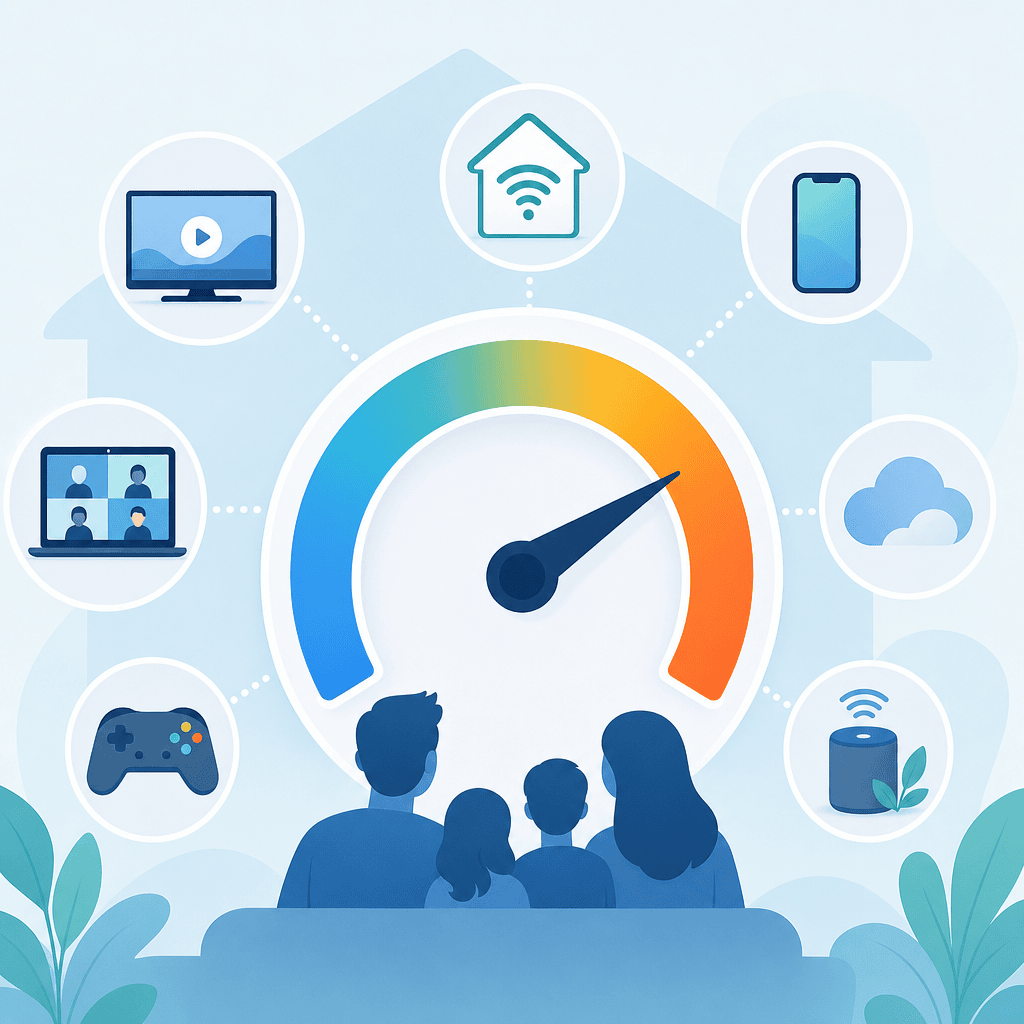

Download speed measures how fast data comes to your device; upload speed measures how fast data leaves it. Most home plans are asymmetric — typically 100 Mbps down but only 10 Mbps up. Download matters for streaming and browsing; upload matters for video calls, cloud backups, livestreaming, and large file sharing. Fiber connections offer symmetric speeds (e.g. 500/500 Mbps).
When people discuss "fast internet," they typically focus on download speed—how quickly they can stream Netflix, download games, or load websites. But upload speed plays an equally critical role for remote workers, content creators, gamers, and anyone who participates in video calls. Understanding the difference between upload and download speed helps you choose the right internet plan, troubleshoot connection issues, and optimize your online experience.
In this comprehensive guide, we'll explain exactly what upload and download speeds are, why both matter for different activities, how to test them accurately, and provide 9 proven steps to optimize your connection. Whether you're experiencing choppy video calls, slow file uploads, or wondering if your internet plan delivers what you're paying for—this guide has you covered.
What Is Download Speed?
Download speed measures how fast your device receives data from the internet. When you stream a movie on Netflix, load a webpage, or download a file from Dropbox, you're using download bandwidth. This is the speed most people think of as "internet speed" because it affects the majority of everyday online activities.
Download speed is measured in Mbps (megabits per second) — see our Mbps vs MBps difference guide if the units confuse you. The higher your download speed, the faster you can:
- •Stream video content – HD requires 5+ Mbps, 4K needs 25+ Mbps
- •Download games and software – A 50 GB game takes 1+ hour at 100 Mbps
- •Browse websites – Modern sites load faster with higher speeds
- •Receive email attachments – Large files download quicker
- •Listen to music streaming – Spotify, Apple Music load without buffering
| Activity | Minimum Download Speed | Recommended Download Speed |
|---|---|---|
| Basic browsing | 3-5 Mbps | 10+ Mbps |
| HD video streaming (1080p) | 5 Mbps | 10+ Mbps |
| 4K video streaming | 25 Mbps | 50+ Mbps |
| Online gaming | 5-10 Mbps | 25+ Mbps |
| Large file downloads | 25 Mbps | 100+ Mbps |
| Multiple users/devices | 50 Mbps | 200+ Mbps |
What Is Upload Speed?
Upload speed measures how fast your device sends data to the internet. When you participate in a Zoom call, upload videos to YouTube, send large email attachments, or backup files to cloud storage, you're using upload bandwidth. Upload speed is often overlooked but is critical for anyone who creates content, works remotely, or communicates via video.
Upload speed is also measured in Mbps. Higher upload speeds enable:
- •Video conferencing – Your camera and audio quality depends on upload
- •Livestreaming – Twitch/YouTube streamers need high, stable upload
- •Cloud backups – Faster upload = quicker Google Drive/Dropbox syncs
- •Online gaming – Your inputs reach game servers via upload
- •Sending large files – Email attachments, file sharing services
- •Smart home devices – Security cameras uploading footage to cloud
| Activity | Minimum Upload Speed | Recommended Upload Speed |
|---|---|---|
| Video call (SD quality) | 1 Mbps | 2+ Mbps |
| Video call (HD 720p) | 1.5 Mbps | 3+ Mbps |
| Video call (Full HD 1080p) | 3 Mbps | 5+ Mbps |
| Livestream (720p 30fps) | 4 Mbps | 6+ Mbps |
| Livestream (1080p 60fps) | 8 Mbps | 12+ Mbps |
| Cloud backup (efficient) | 10 Mbps | 25+ Mbps |
| Professional streaming/creator | 25 Mbps | 50+ Mbps |
For detailed video conferencing requirements, check our specialized guide: Upload Speed for Video Calls: Complete Requirements Guide.
Upload vs Download: Key Differences Explained
Understanding the fundamental differences between upload and download helps you diagnose issues and choose the right internet plan for your needs.
| Aspect | Download Speed | Upload Speed |
|---|---|---|
| Direction | Data from internet TO your device | Data from your device TO internet |
| Primary use | Consuming content (streaming, browsing) | Creating/sending content (calls, uploads) |
| Typical speed | Higher on asymmetric connections | Lower on asymmetric connections |
| Impact when slow | Buffering, slow page loads, download times | Choppy video calls, slow uploads, lag |
| Who needs more | Streamers (viewers), gamers (downloads) | Content creators, remote workers, streamers (broadcasters) |
| Testing focus | Most common metric advertised | Often overlooked but equally important |
Asymmetric vs Symmetric Internet Connections
The ratio between your download and upload speeds depends on your connection type:
- •Asymmetric connections (cable, DSL, 4G/5G): Download is 5-20x faster than upload. Example: 200 Mbps download / 10 Mbps upload.
- •Symmetric connections (fiber FTTH): Upload equals download. Example: 500 Mbps download / 500 Mbps upload.
Typical Upload and Download Speeds by Connection Type
Different internet technologies offer vastly different upload and download speed ratios. Here's what you can typically expect from each connection type:
| Connection Type | Typical Download | Typical Upload | Upload:Download Ratio | Best For |
|---|---|---|---|---|
| Fiber (FTTH) | 100-2000 Mbps | 100-2000 Mbps | 1:1 (symmetric) | Creators, remote work, power users |
| Cable/HFC | 100-500 Mbps | 10-35 Mbps | 1:10 to 1:20 | Streaming households, casual users |
| DSL/VDSL | 10-100 Mbps | 1-20 Mbps | 1:5 to 1:10 | Basic browsing, light streaming |
| 5G Fixed Wireless | 50-500 Mbps | 10-100 Mbps | 1:5 to 1:10 | Urban areas without fiber |
| 4G LTE | 10-100 Mbps | 5-50 Mbps | 1:2 to 1:5 | Mobile, backup connections |
| Satellite (LEO) | 50-200 Mbps | 10-20 Mbps | 1:5 to 1:10 | Rural areas (high latency) |
| Satellite (GEO) | 25-100 Mbps | 3-10 Mbps | 1:10 | Remote locations (very high latency) |
Why Cable Has Such Low Upload Speeds
Cable internet uses DOCSIS technology which historically allocated most bandwidth channels to download. DOCSIS 3.1, still the most widely deployed version, generally delivers asymmetric residential service. This made sense when internet was primarily for consuming content, but modern usage patterns (video calls, cloud storage, streaming) increasingly require upload bandwidth.
The newer DOCSIS 4.0 standard supports up to 10 Gbps downstream and 6 Gbps upstream; availability depends on your provider and local network upgrades. For now, fiber remains the only technology offering truly symmetric speeds for most users.
Why Upload Speed Matters More Than You Think
Many users only discover upload speed's importance when they experience problems: choppy video calls, slow cloud backups, or buffering livestreams. Here's why upload deserves more attention:
📹 Video Conferencing & Remote Work
During Zoom, Teams, or Google Meet calls, your camera and microphone data must reach other participants in real-time. Low upload speed causes:
- • Pixelated or frozen video for others viewing you
- • Audio cutting out or lagging
- • Automatic quality reduction by the platform
- • Screen sharing becoming slow or choppy
🎮 Online Gaming
While games use relatively little upload bandwidth (0.5-1 Mbps), consistency matters more than raw speed. Your inputs (movement, actions) travel upstream to game servers. Unstable upload causes:
- • Input lag and delayed actions
- • Rubber-banding (character snapping back)
- • Disconnections during competitive matches
- • Higher ping spikes during congestion
For gaming optimization, see our guide: What Is a Good Ping for Gaming?
📺 Content Creators & Livestreamers
Streaming to Twitch, YouTube, or Facebook requires sustained, stable upload bandwidth. Your stream quality directly depends on upload speed:
- • 720p 30fps streaming: 4-6 Mbps upload minimum
- • 1080p 60fps streaming: 8-12 Mbps upload minimum
- • 4K streaming: 25-35+ Mbps upload minimum
- • Always add 25-50% headroom for stability
☁️ Cloud Storage & Backup
Services like Google Drive, Dropbox, iCloud, and OneDrive sync files using your upload bandwidth. Impact of upload speed on backup times:
- • 10 GB backup at 10 Mbps: ~2.2 hours
- • 10 GB backup at 50 Mbps: ~27 minutes
- • 10 GB backup at 100 Mbps: ~13 minutes
- • Ongoing sync of large files slows other activities
📱 Smart Home & Security Cameras
Modern homes have multiple devices uploading data continuously:
- • Security cameras streaming to cloud (1-4 Mbps each)
- • Video doorbells uploading clips
- • Smart displays making video calls
- • IoT devices syncing data in background
How to Test Your Upload and Download Speeds
Accurate speed testing helps you verify you're getting what you pay for and diagnose connection issues. Here's how to test effectively:
Step 1: Prepare for Accurate Testing
- 1.Close all applications – Streaming, downloads, and cloud sync affect results
- 2.Disconnect other devices – Or pause their internet usage during testing
- 3.Use Ethernet if possible – WiFi adds variability; wired shows true ISP speeds
- 4.Restart your router – Clears temporary issues that might affect speed
Step 2: Run Multiple Tests
Single tests can be misleading due to network variability. For accurate results:
- •Run at least 3 tests at different times (morning, evening, peak hours)
- •Test on multiple days to identify patterns
- •Compare results to your ISP's advertised speeds
- •Document results if speeds are consistently below advertised rates
Understanding Your Test Results
| Metric | What It Measures | Good Result |
|---|---|---|
| Download Speed | Data from internet to you | 50+ Mbps for most households |
| Upload Speed | Data from you to internet | 10+ Mbps (50+ for creators) |
| Ping (Latency) | Response time to server | Under 30ms (under 15ms for gaming) |
| Jitter | Ping variation over time | Under 10ms for stability |
| TCP Retransmission Rate | TCP data that had to be sent again | Lower is better; an indicator, not a direct packet-loss measurement |
For detailed ping analysis, see our Ping Test and Jitter Test tools.
What's a Good Upload and Download Speed?
"Good" speeds depend entirely on your usage patterns and household size. Here are detailed recommendations for different scenarios:
Speed Recommendations by User Type
| User Profile | Download Speed | Upload Speed | Rationale |
|---|---|---|---|
| Single user, basic browsing | 25 Mbps | 3 Mbps | Enough for streaming HD and casual use |
| Remote worker (1 person) | 50 Mbps | 10 Mbps | Video calls + cloud sync without issues |
| Family (2-4 people) | 100 Mbps | 20 Mbps | Multiple devices streaming simultaneously |
| Power user household | 200+ Mbps | 50+ Mbps | Heavy downloads, multiple streamers |
| Content creator/streamer | 200+ Mbps | 50-100 Mbps | High upload for streaming + cloud backup |
| Small business/home office | 300+ Mbps | 100+ Mbps | Multiple employees, video conferencing |
| Professional creator studio | 500+ Mbps | 500 Mbps (fiber) | Maximum upload for 4K streaming, large files |
Speed Recommendations by Activity
🎬 Streaming & Entertainment
- • SD quality: 3 Mbps download
- • HD (1080p): 5-10 Mbps download
- • 4K UHD: 25 Mbps download
- • 4K HDR: 40+ Mbps download
📞 Video Conferencing
- • 1:1 HD call: 3 Mbps up/down
- • Group call HD: 5 Mbps up/down
- • Screen sharing: +2-3 Mbps upload
- • Webinar host: 10+ Mbps upload
🎮 Gaming
- • Gameplay: 3-10 Mbps download
- • Game downloads: 50+ Mbps preferred
- • Upload: 1-3 Mbps (stability key)
- • Ping: Under 30ms critical
📤 Uploading & Creating
- • YouTube upload: 10+ Mbps
- • Twitch streaming: 8-15 Mbps
- • Cloud backup: 25+ Mbps
- • Professional: 50-100+ Mbps
9 Steps to Optimize Upload and Download Speeds
Whether you're troubleshooting slow speeds or optimizing for peak performance, follow these 9 proven steps to improve both upload and download:
Step 1: Test Your Current Speeds
Run a comprehensive speed test to establish your baseline. Test at different times of day to identify patterns and peak congestion periods. Document results to compare with your ISP's advertised speeds.
Tool: Use our Speed Test for accurate measurements.
Step 2: Switch to Wired Ethernet Connection
WiFi introduces latency, packet loss, and speed variability. Connect your device directly to your router using an Ethernet cable for the most stable, consistent speeds. Use Cat6a for 10 Gbps runs up to 100 meters; Cat6 handles 10 Gbps only on shorter runs.
Improvement: More consistent than Wi-Fi; the speed gain depends on your wireless link and internet plan.
Step 3: Optimize Router Placement and Settings
Place your router in a central, elevated location away from walls, metal objects, and interference sources (microwaves, cordless phones). Update firmware to the latest version, and select optimal WiFi channels.
Details: See our Router Configuration Best Practices.
Step 4: Configure Quality of Service (QoS)
Access your router's admin panel and enable QoS. Prioritize time-sensitive traffic like video calls and gaming over background activities. Limit bandwidth for cloud backups during peak usage times.
Result: Prevents bandwidth-heavy tasks from disrupting real-time activities.
Step 5: Close Bandwidth-Consuming Applications
Background applications often consume bandwidth without you realizing. Close unnecessary apps, pause cloud sync services (Dropbox, OneDrive), and disable automatic software updates during important activities.
Check: Task Manager (Windows) or Activity Monitor (Mac) shows network usage per app.
Step 6: Reduce WiFi Interference
Use WiFi analyzer apps to check for channel congestion from neighbors. Switch to 5GHz band for faster speeds (shorter range). Consider WiFi 6/6E equipment for better performance in crowded environments.
Tip: Channels 1, 6, and 11 don't overlap on 2.4GHz—use whichever is least congested.
Step 7: Contact Your ISP About Speed Issues
If speeds consistently fall below advertised rates, contact your ISP. They can check for line issues, reset your connection remotely, or send a technician. Document your speed tests as evidence.
When to call: Speeds below 70% of advertised rates consistently warrant investigation.
Step 8: Consider Upgrading Your Internet Plan
If optimization doesn't help and you genuinely need more bandwidth, evaluate upgrading. Prioritize plans with higher upload speeds for remote work and content creation. Fiber is the gold standard if available.
Compare: Check our Fiber vs Broadband comparison.
Step 9: Advanced Network Optimization
For power users: consider a mesh WiFi system for whole-home coverage, use MoCA adapters for wired speeds over existing coax cables, set up a dedicated network for work devices, or test if a VPN like NordVPN improves routing efficiency.
Note: VPNs typically add slight latency but can sometimes bypass ISP throttling.
Common Upload and Download Speed Issues
Here are the most common problems affecting upload and download speeds, with their likely causes and solutions:
| Symptom | Likely Cause | Solution |
|---|---|---|
| Good download, slow upload | Asymmetric connection (cable/DSL) | Upgrade to fiber or higher-tier plan with better upload |
| Both speeds slow | ISP throttling, network congestion, equipment issues | Test at different times, check router, contact ISP |
| Speeds slow on WiFi only | WiFi interference, weak signal, old router | Use Ethernet, optimize router placement, upgrade router |
| Speeds slow at certain times | Peak hour congestion | Upgrade plan, use QoS, schedule heavy tasks off-peak |
| Inconsistent speeds | Packet loss, unstable connection | Check cables, restart modem/router, contact ISP |
| Fast speed test, slow real use | Background apps, multiple devices | Close apps, check for malware, audit device usage |
| Speeds drop during video calls | Insufficient upload for HD video | Lower video quality, use Ethernet, upgrade upload speed |
Frequently Asked Questions
Q: Why is my upload speed so much lower than my download speed?
A: Most internet connections use asymmetric technology (ADSL, cable, 4G/5G) designed for consuming content rather than creating it. ISPs allocate more bandwidth to download because typical users download more than they upload. Fiber plans commonly offer symmetrical speeds where upload equals download; some upgraded cable networks and dedicated business services do too.
Q: How much upload speed do I need for HD video calls?
A: For HD video calls (720p), you need at least 1.5-2 Mbps upload speed. For Full HD (1080p) calls on Zoom or Teams, aim for 3-4 Mbps. For group calls with multiple participants or screen sharing, 5-10 Mbps upload provides a buffer for smooth quality without drops.
Q: Does upload speed affect online gaming?
A: Upload speed has minimal impact on gaming performance for most games. Typical games use only 0.5-1 Mbps upload. However, ping (latency) is far more important for gaming responsiveness. If you're streaming your gameplay on Twitch or YouTube while playing, you'll need 6-15+ Mbps upload depending on stream quality.
Q: What's the difference between Mbps and MBps?
A: Mbps (megabits per second) measures internet speed, while MBps (megabytes per second) measures file size transfer rates. There are 8 bits in a byte, so 100 Mbps equals approximately 12.5 MBps. ISPs advertise in Mbps, but your computer shows downloads in MBps, which can cause confusion.
Q: Can I increase upload speed without changing my internet plan?
A: You can optimize upload speed by: using Ethernet instead of WiFi (reduces latency/packet loss), upgrading your router firmware, enabling QoS to prioritize upload traffic, closing background apps that consume bandwidth, and choosing less congested WiFi channels. However, your maximum upload is limited by your ISP plan.
Q: Is fiber internet always better for upload speed?
A: Usually, but compare the actual plans. Many fiber plans offer symmetrical speeds and strong upload performance, though some are asymmetric. Fiber also tends to have lower latency and steadier peak-hour performance, depending on the provider and network load. For content creators, remote workers, and gamers, fiber's upload capabilities are superior.
Q: How does upload speed affect cloud backup and storage?
A: Upload speed directly determines how fast you can back up files to cloud services like Google Drive, Dropbox, or iCloud. With 10 Mbps upload, backing up 10 GB takes about 2.2 hours. With 100 Mbps upload (fiber), the same backup takes only 13 minutes. For large photo/video libraries, higher upload speeds save significant time.
Q: What upload speed do I need for livestreaming on Twitch or YouTube?
A: For 720p 30fps streaming: minimum 4-5 Mbps upload. For 1080p 60fps streaming: 8-10 Mbps upload. For 4K broadcasting: 25-35+ Mbps upload, depending on codec and frame rate. Always have 25-50% headroom above your bitrate for stability. Professional streamers typically use fiber connections with 50+ Mbps upload.
Conclusion: Why Both Speeds Matter
Download speed powers your content consumption—streaming movies, downloading games, browsing the web. Upload speed enables your content creation and communication—video calls, livestreaming, cloud backups, and online gaming inputs. Both are essential for a complete, frustration-free internet experience.
For most households, download speed receives appropriate attention because it's heavily marketed by ISPs. However, upload speed is increasingly critical as we work from home more, rely on video conferencing, back up our lives to the cloud, and participate in content creation.
If you experience issues with video calls, slow uploads, or gaming lag, test your upload speed specifically and consider whether your current plan provides adequate upstream bandwidth. For the best experience, especially for remote workers and creators, fiber internet with symmetric speeds remains the gold standard.
Related Resources
Upload Speed for Video Calls
Complete requirements guide for Zoom, Teams, Meet, and more.
What Is a Good Internet Speed?
Comprehensive benchmarks for all use cases.
Broadband vs Fiber Internet
Compare connection types and find the best option.
How to Improve WiFi Speed
8 proven steps to boost your wireless performance.